The big news with Premium is they have added Softimage to the bundle. You now get Face Robot for dealing with complex face rigging, the simply incredible ICE visual programming system and the much talked about and drooled over Lagoa Multiphysics dynamic solver system written in ICE. I know what youre thinking: I have not used Softimage since Maya 1.0 came out, why would I now? Well, Autodesk made it easy to add its very powerful toolset to the pipeline with one click Send To functions letting you push and pull data between the other suite software via the updated .FBX format. Also helpful are the Maya navigation and hotkeys for a quick transition. Want to use ICE to make amazing effects and send it over to Maya? No problem. I think it is time to add some Softimage artists to your “to be hired” list if you havent done it yet.
Author Archives: xsisupport
Case Study: Macross F the movie
From Autodesk Japan, a case study (autodesk.co.jp/macrossf).

© 2011 Bikkuuesuto / Macross F Production Committee, The Movie
Softimage, Maya, 3ds Max, and MotionBuilder were all used in this production.
Plexus Productions Opener – making of by Tim Borgmann
Even the Softimage screenshots look great.
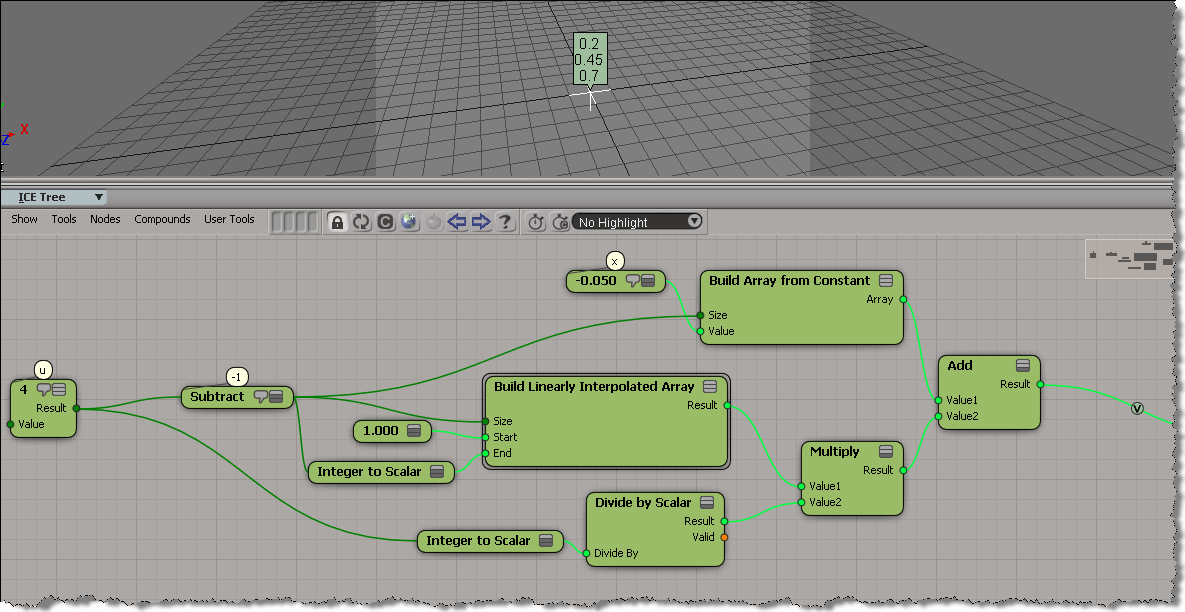
Using arrays instead of loops in ICE
Here’s a simple example of using an array instead of a loop in an ICE tree.
In general, for performance, you’d like to avoid repeats and loops in ICE.
This post is in repsonse to this thread.
var u = 4;
var x = -.05;
for (i=1; i <= u-1; i++) {
x = x + 1/u ;
LogMessage( x );
}
// INFO : 0.2
// INFO : 0.45
// INFO : 0.7
Using Round Corners with the Architectural material
Friday Flashback #19 The Complete Line of Digital Media Creation
Building Bushes in ICE – Demo for Non-Coders #2 on Vimeo
GraphicSpeak » Luxology and Softimage add Bullet to their arsenal
GraphicSpeak » Luxology and Softimage add Bullet to their arsenal.
Bullet and Autodesk Softimage
Exocortex Technologies is distributing a plug-in for Softimage alled Momentum 2.0 for $149. It was developed by Helgee Mathee of the University of Hamburg, a prolific plug-in developer for Softimage. Momentum simulates rigid bodies and is used to simulate ropes, the behavior of plastics, soft bodies, and cloth.
Checking if an ICE node is part of a connected branch
Here’s a little recursive function that checks whether the selected ICE node is part of a branch that is connected to the terminal ICE Tree node.
I used IsConnected to check whether a node is connected to some other node, and then I traverse the output ports, getting the connected nodes, until I reach the ICE Tree node (or not).
var o = Selection(0);
//LogMessage( o.IsConnected );
LogMessage( "isBranchConnected()="+isBranchConnected(o) );
// Given an ICE node, check if the node is part
// of a branch connected to the ICE Tree node
function isBranchConnected( oNode )
{
if ( !oNode.IsConnected )
{
return false;
}
else if ( oNode.Type == "ICETree" )
{
return true;
}
else
{
oEnum = new Enumerator( oNode.OutputPorts ) ;
for (;!oEnum.atEnd();oEnum.moveNext() )
{
var oSelItem = oEnum.item() ;
oEnum1 = new Enumerator( oSelItem.ConnectedNodes ) ;
for (;!oEnum1.atEnd();oEnum1.moveNext() )
{
var oSelItem1 = oEnum1.item() ;
return isBranchConnected( oSelItem1 );
}
}
}
}
And here’s a Python version. With Python, I always have the nagging feeling that my code code be better.
# Given an ICE node, check if the node is part # of a branch connected to the ICE Tree node def isBranchConnected( oNode ): if not oNode.IsConnected : return False elif oNode.Type == "ICETree" : return True; else: for port in oNode.OutputPorts: for node in port.ConnectedNodes: return isBranchConnected( node ) o = Application.Selection(0); Application.LogMessage( "isBranchConnected()=" + str(isBranchConnected(o)) );
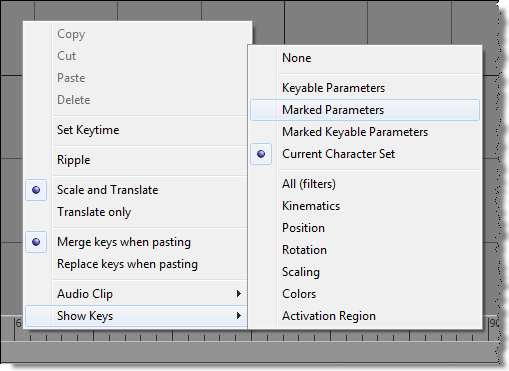
Changing the mini-dopesheet Show Keys settings
To change the type of keys shown in the mini-dopesheet in the timeline, you set the same preferences used by the full dopesheet:
// Marked Parameters Preferences.SetPreferenceValue( "dopesheet.timeline_display_keys",2 ); //Current Character Set Preferences.SetPreferenceValue( "dopesheet.timeline_display_keys", 11 );
So, to toggle between Show Keys > Marked Parameters and Show Keys > Current Character Set, you could do something like this:
var x = Preferences.GetPreferenceValue( "dopesheet.timeline_display_keys" ); x = ( x==2 ) ? 11 : 2; Preferences.SetPreferenceValue( "dopesheet.timeline_display_keys", x );