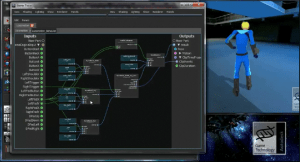
The Area :: Autodesk® Softimage® 2012


Autodesk Softimage 2012 Autodesk® Softimage® 2012 software delivers innovative new creative toolsets; enhanced interoperability with Autodesk® Entertainment Creation Suite Premium products; and new tools that embrace recent technology trends.

via The Area :: Autodesk® Softimage® 2012.

Note: I took out the SAP features like Lagoa from the following list.

New features in Softimage 2012 include:

  • ICE Modeling: Create procedural geometry in the Interactive Creative Environment (ICE) based on a set of rules, conditions, and parameters.
  • Enhanced Everyday Workflows: Enjoy greater overall productivity and ease of use, with across-the-board enhancements. The Texture Editor, Explorer, Schematic View, Scene Layer Manager, Render Tree, Bone Primitive, Reference Models, and Weight Editor have all received attention.
  • Syflex on ICE: Use the power of ICE to achieve greater control and flexibility over Syflex cloth simulations.
  • UV Unfolding: Save time and effort with new UV relaxing and pinning options.
  • Single-Step Suites Interoperability: More easily take advantage of the focused toolsets in the Autodesk® Entertainment Creation Suites Premium 2012, with new single-step interoperability between Softimage and Autodesk® Maya®, Autodesk® 3ds Max®, and Autodesk® Mudbox™ software.
  • ICE Subframe Sampling: Calculate collisions more accurately in ICE simulations, with new support for subframe sampling on a per-object or per-point cloud basis.
  • Vector Displacement Map Support: You can use mental ray® rendering technology to render complex high-resolution details created in Mudbox 2012 software or certain other applications on low-resolution geometry.
  • Consistent F-Curve Editor: More easily switch between multiple products in the Autodesk Entertainment Creation Suites Premium thanks to an updated F-Curve Editor that provides a toolset that offers more consistent functionality and terminology for editing animation curves.
  • SDK Enhancements and Events: Facilities can now more easily customize and extend their tools and pipelines, with the exposure of more core Softimage services and events: Undo Bracketing, onCommand Events, and onRenderPass Events.
  • FBX 2012: Through support for the Autodesk® FBX® 2012 asset exchange technology, artists can transfer stereo camera rigs, vector displacement maps, multiple UVs, and subframe samples for icecache and PC2 in and out of Softimage, making it easier to safely pass production assets between products.

runonce.bat cannot start because Crosswalk is missing


If you get this error when you try to run runonce.bat:

sireg.exe – System Error
The program can’t start because Crosswalk_2-11.5.64.dll is missing
from your computer. Try reinstalling the program to fix this problem.

it’s probably because your PATH environment variable is missing the Softimage Common Files:

  • C:\Program Files (x86)\Common Files\Softimage;
  • C:\Program Files\Common Files\Softimage;

Closing error dialog boxes that pop up during batch rendering


If xsibatch hits a runtime error or stops responding, Windows will pop up a dialog box that will sit there until some dismisses it.

On the XSI mailing list last year, Alan Fregman posted an AutoHotKey script that kills Visual C++ Runtime error messages when they pop-up.

AutoHotKey is free, so you could adapt that script to handle other pop-up dialogs, like the XSIBatch.exe has topped working message.

Another possibility would be to set the HKCU\Software\ Microsoft\Windows\Windows Error Reporting\DontShowUI registry key. I haven’t tried it, but I read about it here.

Tip: To test the AutoHotKey script, double-click the .exe to start the AutoHotKey script. You should see an icon in your Windows task bar. Then in Softimage, run this JScript:

XSIUIToolkit.MsgBox( "Runtime Error!" , siMsgOkOnly, "Microsoft Visual C++ Runtime Library");

The pop-up message box should close immediately.

Try exiting the AutoHotKey script (from the task bar). Then run the JScript again.,
Or just change “Runtime Error” to “All is good”, and notice that the message box is not automatically closed.

MOTOR Load Motion malfunction


Recently, I had a case where the customer reported that his rig “exploded” when he tried to load and apply a .motion file.

Since the customer was from EMEA (that’s Autodesk-speak for Europe/Middle East/Africa), I figured this was most likely this is because of the Number format in the Windows Region and Language settings. I was able to reproduce the problem by changing my Region and Language Format at Germany. Except that my character didn’t explode; rather, it ended up 121800 units from the origin looking like a Star Trek transporter malfunction.

To fix this:
Try changing the Decimal Symbol to a period (.) and the Digit Grouping Symbol to a comma (,).
Or switch the Format to English (United States).

Checking for ICE trees in the construction history


You can use the ActivePrimitive.ConstructionHistory to find out where an ICETree is in the construction stack.

var o = Dictionary.GetObject( "someobject" );
var sMarker;

oEnum = new Enumerator( o.ActivePrimitive.ConstructionHistory );
for (;!oEnum.atEnd();oEnum.moveNext())           
{
	if( oEnum.item().BelongsTo( "MarkerOperators" ) )
	{
		sMarker = oEnum.item().type;
	}
	else if (oEnum.item().IsClassOf( siICETreeID  ) == true )
	{
		LogMessage( sMarker + " -> " + oEnum.item().name );
	}
}
// INFO : simulationmarker -> ICETree1
// INFO : modelingmarker -> ICETree

And here’s a Python version courtesy of Alan Fregtman of the Softimage mailing list.
How to tell if a given ICETree object is simulated or not

# ---------------------------------
xsi = Application

obj = xsi.Selection(0)
markers = ["secondaryshapemarker","postsimulationmarker","simulationmarker","animationmarker","shapemarker","modelingmarker"]
opstack = obj.ActivePrimitive.ConstructionHistory

for op in opstack:
	if any([op.FullName.endswith("."+marker) for marker in markers]):
		lastMarker = op.FullName

	if xsi.ClassName(op) == "ICETree":
		print op.FullName+" is under marker: "+lastMarker.split(".")[-1]

37signals: Customer Support Happiness Report


Interesting. This company uses a smiley-face rating system for their customer support. And they publish the last 100 results.

After every interaction with our support team, a customer is asked to rate the experience by clicking one of three ratings: “It was great” (happy face), “It was OK” (flat-line face), or “It wasn’t good” (frown face).
via 37signals: Customer Support Happiness Report.

At Autodesk we use a scale from 0 to 10, which is broken down like this:

0-6 )-:
7-8 |-:
9-10 (-:

An error occured trying to save file setenv.bat


If you get this error when you try to use UserTools to edit setenv.bat:

---------------------------
Error
---------------------------
An error occured trying to save file 'C:\Program Files\Autodesk\Softimage 2011\Application\bin\Setenv.bat' !
---------------------------
OK   
---------------------------

then you have to run UserTools with elevated privileges.

Right-click the UserTools shortcut and click Run as Administrator.
-or-
Right-click UserTools, click Properties, go to the Compatability tab, and under Privilege Level, select the “Run this program as an administrator” check box.