LMTOOLS ignores license path environment variables


Actually, no, it doesn’t. Not by default.

You should select the LMTOOLS ignores license path environment variables check box (it’s on the Service/License File tab of LMTOOLS). This prevents LMTOOLS from reading license server information from the ADSKFLEX_LICENSE_FILE key in the registry.

Letting LMTOOLS read license info from the environment can cause a number of problems:

  • LMTOOLS may spend time trying to connect to license servers that no longer exist.
  • Perform Status Enquiry may show errors that refer to some obsolete software you haven’t used in years (but which used some version of FlexLM).
  • Stop Server may stop more than your local license server. It may also stop any server listed in the registry (like, say, the central license server for the whole company).
No interactive network license available on Vista, Windows 7


When you install Softimage and the license server on the same Vista or Windows 7 computer, you’ll get the “no interactive network license available” error unless you do one of the following:

  • Use the IPv4 address, not the computer name, to specify the location of the license server

    -or-

  • Install the IPv6 update for the Autodesk Network License Manager.

By default, on Vista and Windows 7, IPv6 is enabled, and when IPv6 is enabled Softimage cannot use the computer name to connect to the license server. This happens only when Softimage and the license server are on the same computer.

registeronce wants a server ID


When you go to registeronce to get your 2010 network license, you need to supply a server ID.

A server ID is the MAC address (also known as the Ethernet address or Physical address). You can find the server ID in LMTOOLS. Look on the System Settings tab, at the Ethernet address box. Sometimes you may see more than one Ethernet address (eg “0000DEADBEEF 00DE00AD00EF”). In that case, use the ipconfig /all command to check which one to use (just make sure you use that address of a physical network adapter).

Use the MAC address of a physical adapter, not a virtual adapter.

Softimage 2010 and Autodesk.lic


2010 does not use Autodesk.lic. Instead, setenv.bat sets ADSKFLEX_LICENSE_FILE to point directly to the license server (for example, ADSKFLEX_LICENSE_FILE=@myserver;).

But, if you already have 7.5 set up, Softimage 2010 will end up using the 7.5 Autodesk.lic file. That is because of the ADSKFLEX_LICENSE_FILE registery entry: it still points to the 7.5 Autodesk.lic.

License troubleshooting


Here are two videos that go over the fundamentals of license troubleshooting. Whenever I WebEx to a customer’s computer, I go through the steps shown in these vidoes. In almost all cases, this is enough for me to resolve the problems.

Troubleshooting 101: The License Server
http://usa.autodesk.com/getdoc/id=TS13737415

Troubleshooting 101: Softimage cannot find the license server:
http://usa.autodesk.com/getdoc/id=TS13780212
Note – this second video was done for 7.5. For 2010, ADSKFLEX_LICENSE_FILE should point to your license server, not to Autodesk.lic.

Changing the Licensing Method


After the install is finished, edit C:\Softimage\Softimage_2010_x64\Application\bin\setenv.bat.

  • SILicMethod specifies whether to use Network or Standalone licensing.
  • _ADSK_LicServers specifies the license server. By default, this env var is set to the value entered during Setup.
rem Licensing method: Standalone | Multi Seat Standalone | Network
set SILicMethod=Network
rem License servers specified from the setup. Format: [port1]@host1[;[port2]@host2]...
set _ADSK_LicServers=@server;

Installing Softimage 2010


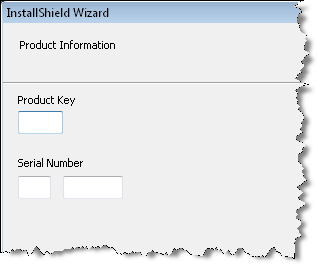
When you install Softimage 2010, you’ll have to enter a product key and a serial number. Just use the product key 00000 and the serial number 000-00000000. That will install Softimage in Trial mode. And if you need to switch to Network licensing later, all you have to do is change an environment variable.

Product Information

Product Key Description
00000 Trial mode product key. Installs Softimage in Standalone licensing mode.
590B1 Softimage product key. You can choose between Standalone, Multiseat Standalone, and Network licensing modes. If you choose Network, you’ll be prompted to enter the license server name.
If you choose Standalone, or if you choose Network and enter the serial 000-00000000, you’ll get the 30-day trial period.
You can switch licensing methods between Standalone and Network.
591B1 Softimage Advance product key. You’ll be prompted to enter the license server name.
If you use the serial number 000-00000000 you can run in Trial mode. You cannot switch back to Standalone mode without reinstalling.