The case of the write-protected disk


Here’s the answer to the Cannot create projects or scenes – The disk is write-protected case I mentioned in my last week on the frontline post.

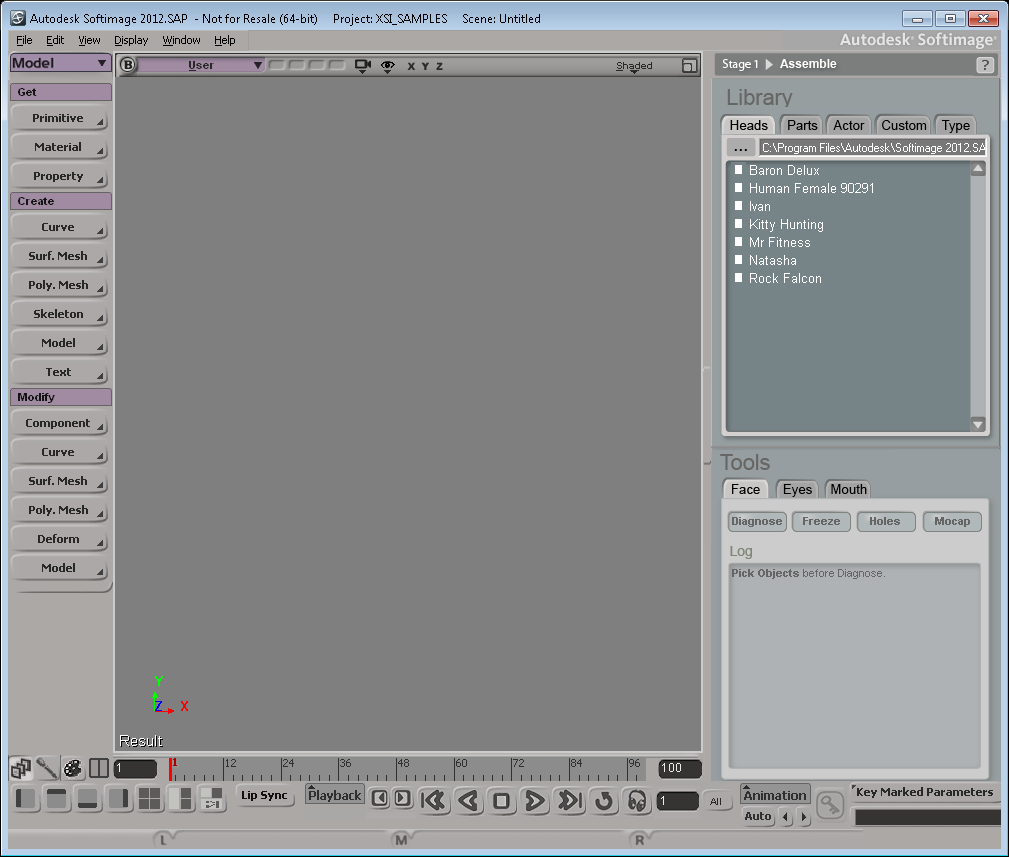
If you get this “the disk is write protected” error when you try to save a scene, it’s probably because you are trying to save your scene in the XSI_SAMPLES project. The XSI_SAMPLES folder is in the Softimage installation folder (in C:\Program Files\Autodesk), so you usually don’t have write permissions to XSI_SAMPLES.

You need a project to save a scene, so create a new project somewhere where you have write permissions, for example, in your Documents folder.

Then save your scene.

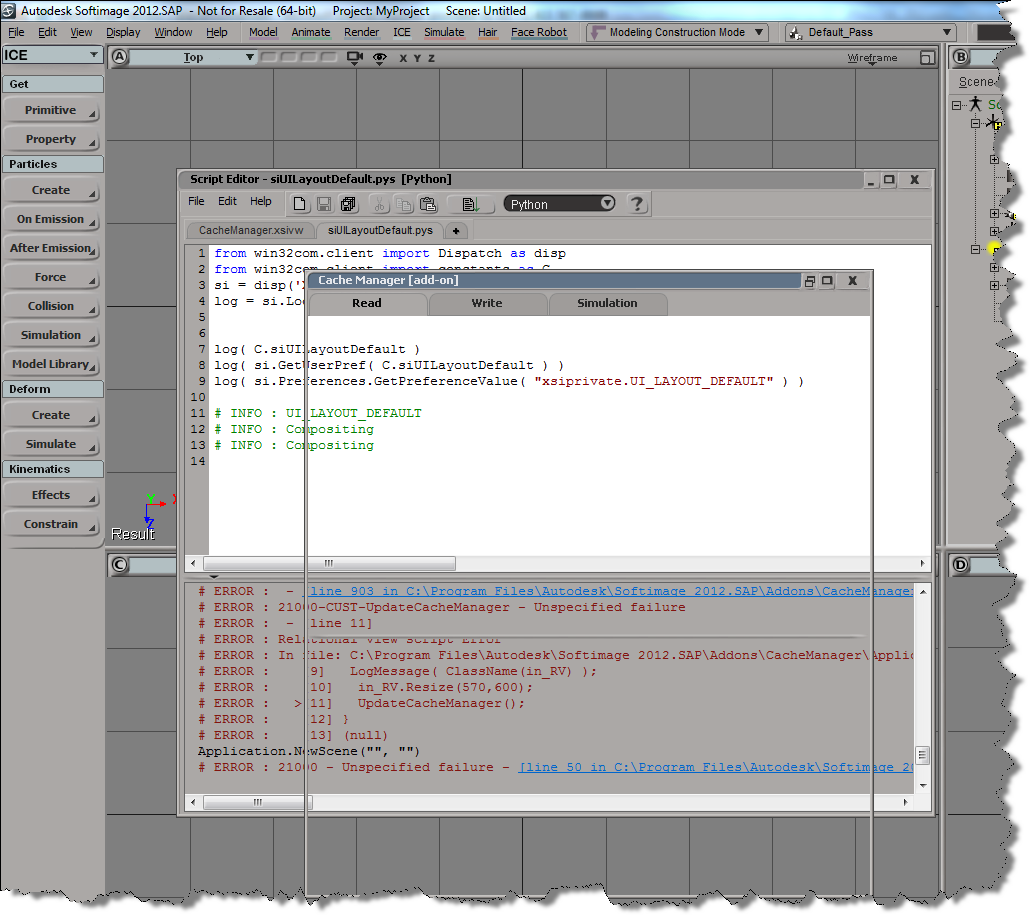
WARNING : 3000 – Objects were not saved normally


Occasionally I’ll see reports of this kind of error. Sometimes I see it when I’m investigating some other problem in a scene.

// WARNING : 3000 - Save: [1] objects were not saved normally
// WARNING : 3000 - -- [Framebuffer<1004>] was saved, but is disconnected from the scene. (Floating object)

You can use Dictionary.GetObject to get the floating object and interrogate it:

var x = Dictionary.GetObject( "Framebuffer<1004>" );
LogMessage( ClassName(x) );
LogMessage( x.Parent );
// INFO : C:\Program Files\Autodesk\Softimage 2012.SAP\Application\bin\XSI.exe
LogMessage( x.Parent3DObject == null );
// INFO : True
LogMessage( x.Owners.Count );
// INFO : 0
LogMessage( x.RenderChannel );
// INFO : Normal
//LogMessage( x.GetResolvedPath(0) );
// ERROR : 21000 - Unspecified failure - [line 15]

And you could even delete the floating object before you save the scene:

DeleteObj( Dictionary.GetObject( "Framebuffer<1004>" ) );

However, there is a scene debugging preference that allows you to “skip the loading of floating objects”. This preference was added back in 2004 or so to deal with “ghost models” (which are basically floating or disconnected objects).

You could also try printver -cleanfloating to remove floating objects. I don’t know if that still works, I haven’t used it three or four years.

Another thing you can try is to merge your scene into a new scene. The warning could be a “false positive”. If the warning is gone after the merge, then it was indeed a false positive (which means that something, such as the schematic view, was still holding on to a reference to a deleted object).

The case of Error 1603 and the corrupt PIT file


In a recent case, a customer reported error 1603” during installation. As I’ve mentioned many times in various places, error 1603 is a generic error code that doesn’t tell us much. So, you can either apply some generic troubleshooting (reboot, check download, disable UAC, reinstall VC++ manually, …) or check the detailed installation logs for more specific information.

The problem is this specific case was that the installer wasn’t able to update ProductInformation.pit. Without looking at the logs, I don’t know whether you would ever figure this out.

http://vimeo.com/33273288

Troubleshooting 101: runonce.bat


Basic troubleshooting for when you cannot start Softimage, or you get strange errors at startup, or you cannot perform basic tasks such as creating primitives or duplicating objects. Or for fixing Softimage after you run a registry cleaner.

Run runonce.bat to re-register the Softimage DLLs and SPDL files (SPDL files describe the parameters of objects and operators in Softimage).

runonce.bat does a lot of what happens during installation and it is a lot faster than removing and then reinstalling Softimage.

http://vimeo.com/32563418

runonce.bat mentions on xsibase, si-community, the AREA, and the XSI list

The case of the scene that wouldn’t play back


or how I learned to love binary search…


In this case, a customer uploaded a scene that always crashed at a certain point in the playback.

After poking around the scene for awhile, I deleted a model and that fixed the crash. The only problem was that the model contained a thousand (1000) objects, so deleting the model wasn’t really a solution. So my next step was to isolate the problem use a “divide and conquer” approach. Sort of like a binary search:

  • delete half of the objects (eg objects 1 to 500)
  • play back
    • if crash, then the problem is one of the objects in the second half (501 to 1000)
    • else the problem is one of the objects in the first half (1 to 500)
  • Repeat as required… at most 10 times (1000,500,250,125,62,31,16,8,4,2,1)

In the end, I narrowed it down to a single mesh object. We weren’t able to save that mesh (it had to be deleted and then recreated), but we did save the scene.

wikipedia:

A binary search halves the number of items to check with each iteration, so locating an item (or determining its absence) takes logarithmic time. A binary search is a dichotomic divide and conquer search algorithm.

Dividing and conquering the problem space:

The case of the missing anchors


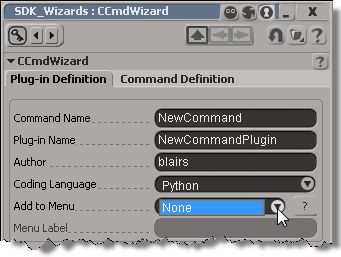
In this case, a customer reported that the Add to Menu list in the Command Wizard was empty. Normally, Add to Menu lists all anchor points for menus where you can add a custom command, but now it had just one entry: None.

The SDK wizards are JScript plugins, so it wasn’t hard to track down where things were going wrong. The Add to Menu list is built by parsing a header file (xsi_decl.h):

var oFSO = new ActiveXObject( "Scripting.FileSystemObject" ) ;
strFactoryPath = Application.InstallationPath( siFactoryPath ) ;
strDeclFile = XSIUtils.BuildPath(XSIUtils.Environment("XSISDK_ROOT"),"include","xsi_decl.h") ;

Based on this, it didn’t take to long to figure out the problem: the customer was starting Softimage with a shortcut to XSI.exe, so setenv.bat was never called, and XSISDK_ROOT was never set.

XSI.bat is the way to start Softimage. XSI.bat calls setenv.bat to set all the required environment variable, and then starts XSI.exe.

The odd case of Maya Help opening in Chrome instead of the default browser


The other day, I noticed that the Maya Help was using Chrome instead of my default browser (currently IE). I didn’t see anything in the docs about specifying a specific browser, so I figured it must be something about my system.

So, like I often do, I fired up Process Monitor to see if I could figure out why. And it was pretty simple.

I found that

HKEY_CURRENT_USER\Software\Classes\.htm

was set to

ChromeHTML

even though my default browser was IE.

So I changed it back to htmlfile, and voila, Maya 2012 opened the online help in IE again. There are other, similar keys, but I didn’t touch them:

HKEY_CURRENT_USER\Software\Classes\.html
HKEY_CURRENT_USER\Software\Classes\.shtml
HKEY_CURRENT_USER\Software\Classes\.xht
HKEY_CURRENT_USER\Software\Classes\.xhtml
HKEY_CLASSES_ROOT\.html

Here’s a video walk through that shows how Process Monitor can be used to diagnose and troubleshoot this kind of problem.
http://vimeo.com/31272761