Friday Flashback #97


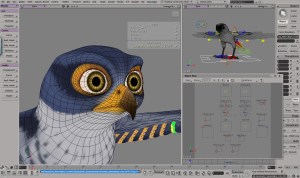
I came across this SOFTIMAGE|3D photo in an article on rotoscoping. It shows ILM co-supervisor Tom Bertino working on one of ILM’s Flubber shots.
bertinoatwork

Once the background plate was scanned into ILM’s Silicon Graphics computers, the match movers went to work. “We’re able to bring up that clip in the computer in a Softimage 3-D environment,” says Bertino. “The matchmovers then took what’s seen on film and recreated it in primitive wireframe models.”
Breaking the Mold:Physics of Jell-O Inspires CGI Stars of Flubber

A little more time on Google led me to some postings on vimeo from Philip Edward Alexy, who was the lead technical animator on Flubber.

First of all, sorry for the quality: this was ripped from a DVD copy of a D-beta tape.
As you can see, there is a heck of a lot more going on that you would think for this shot. As you see at the beginning, there is the Blob Flubber sitting in the matchmove representation of Robin William’s hand. Now keep in mind, back then, all of the matchmove stuff, both camera and object geometry, was HAND-ANIMATED. There was a crew of guys from the old practical ILM shop who transferred into the digital side: some of these guys worked on “Empire Strikes Back” and onwards, so they knew how cameras worked and were able to use this experience to do the one thing that made ILM stand out back then, properly reconstruct scene and camera information into the computer.
So we have the Blob sitting there, with what appears to be somesort of orthopedic back-brace and a black fuzzy alien sitting in its belly. Well, the “brace” is in fact the up-vector construct I had to develop because the Meta-Clay elements that made up the Blob Flubber where not spherical, they were shaped like overlapping mass of blobby M&Ms because when the client want to get away from the “pear-shaped” Flubber that spherical Meta-Clay created. BUT, Softimage3|D didn’t have up-vector constraint and (of if it it, it did not work well at all) when they were lined up on the cluster-deformed path spline that held them in place, they would start flipping randomly along the shortest axis. This was bad because it looked like the Flubber was having a seizure when animated. So I had to invent an up-vector constraint that worked consistently. So that’s what the “brace” is, which had to be, at times, key-framed to prevent the flipping.
So what’s that alien? Why it’s the Puppy Flubber rig, elements and geometry, all compressed, waiting for the moment Robin Williams sticks his fingers into the Blob Flubber. Presto-change-o, without any quick cutting or changing of the scene file because of the nature of Meta-Clay, the Puppy Flubber pops up, all ready and IK-rigged, and the Blob Flubber lines up inside the body part of the Puppy.

The puppy design, by Scott Leberecht, had to be envisioned with the tools at the time, which was Meta-Clay balls in Softimage 3|D. If you had ever used that tool, you would understand what a task it was to get the right shape, and then rig it so it could be animated.

At the time, it was the densest CGI structure ever made. There were about three hundred Meta-Clay elements, all spine/spline/cluster controlled. It took about two minutes just to refresh to the next frame. It took me about two months to build and rig.

A bit of test animation, to show that ILM could actually DO the Character Flubber, that ended up in the official Disney trailer.
Little bit of trivia: all those bubbles you see? They’re not part of the shader: those are all individual pieces of geometry that are parented to the rig. Sometimes, because they would fly out of the mesh depending of the pose, they had to be key-framed

This one shot took a year to do. Seriously.

Finally, in a Word document at ncca.bournemouth.ac.uk, I found this. It’s attributed to a no-longer existing page at Philip Edward Alexy’s web site.

“We had thought of doing something where we could use B-spline patches that we could shape animate over time. But, that wasn’t practical because Flubber changed so much within a sequence that it would have been too time-prohibitive to model all the different forms. Even when he was just a little blob he changed so much that to do it using patches, shape animation and lattices just wouldn’t work.”

“Since the Flubber character was composed almost entirely of metaballs, the animators could easily turn him into anything from a pair of lips to a tail-wagging puppy to a hip-shaking mambo dancer. In addition to Softimage, ILM developed several custom effects to turn a blob into everything that blobs could possibly become within the animators’ collective imagination. Several Flubber models were developed: the Basic Blob, a male and female Actor-Flubber, a Scare-Flubber, a Puppy-Flubber, a Fingers-Flubber, a Bubble-Flubber and several others – each more difficult to pronounce in rapid succession.”
http://www.flyingsheep.org/work/resume/html/resume_pub_flub.html

Checking the environment of a running program


Sometimes when you’re troubleshooting, it’s a good idea to check the environment in which Softimage is running.
You can check specific environment variables in the script editor like this:

import os
print os.getenv( "XSI_USERHOME" )
print os.getenv( "TEMP" )

or like this:

print XSIUtils.Environment("XSI_BINDIR")

But I would typically use Process Explorer to see the full environment:
ProcessExplorer_Environment
or Process Monitor (in Process Monitor, you just have to find the Process Start operation for XSI.exe and double-click it).
ProcessMonitor_Environment

Arnold licensing explained visually


As requested in the comments, here’s a visual explanation of Arnold licensing, to go along with the Softimage version I posted last week.

Suppose you had five Arnold licenses. With those five licenses, you can have five machines using Arnold to render. For example, you might have two artist workstations and three render nodes (but you can have any combination of workstations and render nodes that adds up to five).
Arnold-Licenses1

Arnold licenses are checked out when you actually render, not when you start Softimage or load a scene. If a workstation isn’t doing a render region, or a render preview, or rendering frames, then there’s no Arnold license being used. So maybe it is more accurate to think of it like this:
Arnold-Licenses2

Arnold licenses are per machine, so all processes on the same machine share the same license. Note that you can limit the number of threads per render if you want to run multiple renders on one machine.
Arnold-Licenses3

Saturday snippet – Getting local properties of scene items


This snippet gets the local properties of anything in the selection list that has local properties.

from win32com.client import constants as C

for o in Application.Selection:
	localProps = (o.LocalProperties if o.IsClassOf( C.siSceneItemID ) else None)
	if localProps != None:
		for p in localProps:
			print p 

LocalProperties is a property of any SceneItem, so all you have to do is check whether the selected object implements the SceneItem interface.

Softimage network licenses explained…visually with ICE


A couple of weeks ago on si-community, there was a discussion of Softimage licensing and someone wished there was a graphic that explained Softimage licensing…

A network license includes one Softimage license, and five Batch licenses.

  • The Softimage license is the “interactive” license: it allows you to run xsi.exe on one computer.
  • The Batch licenses run xsibatch, and are used for command-line rendering on render nodes. One Batch license = one render node.

Each instance of xsi.exe and xsibatch.exe can use up to four satellite computers for satellite rendering.
network-licenses-satellite

You can run multiple copies of xsi.exe or xsibatch.exe on the same computer. A license is shared as long as processes are running under the same user account and on the same host (aka computer).

You can run an unlimited number of xsibatch -processing jobs. With xsibatch -processing, you can do anything except render. Typically you use it to run script jobs on scene files.

And finally, you can also use the Softimage license to run xsibatch.

Update: As requested in the comments, here’s six render nodes, each using four satellite computers:
network-license-rendernodes-w-satellite

Getting the ICE tree view from a menu callback


How do you get the ICE Tree view in a menu callback? For example, if you add a menu item to the ICE Tree > User Tools, how does the menu item callback get the ICE Tree view?

The answer is actually in code I posted before, but that was in a blog post titled Getting the selected ICE nodes. So, with that title, you wouldn’t necessarily think to look there.

So what’s the answer? Uses Context.GetAttribute( “Target” ). For custom menus in the views like the ICE Tree view, the Fcurve Editor, and the Material Manager, the Target attribute is the View object. And once you have the View object, you can get the View attributes.

#
# Callback added to the menu item with Menu.AddCallbackItem
#
def My_menuItem_Callback( in_ctxt ):

	# Get the ICE Tree view
	oView = in_ctxt.GetAttribute("Target")
	
	# 
	LogMessage( 'View: ' + oView.Name )
	
	# get the selected nodes
	nodes = oView.GetAttributeValue('selection')
	LogMessage( 'Selected nodes: ' + nodes )

Soapbox alert…
This post illustrates why indexes are a good thing…with them, you can find information no matter what page or heading contains the information.
For ICE trees, you’d have index entries something like this:

  • ICE tree
    • view attributes
      • target
      • container
    • selected nodes, getting
    • view, getting
    • ICETree node, getting