Intro to rotating vectors in ICE


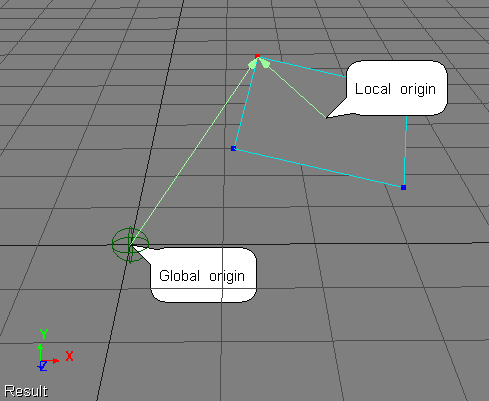
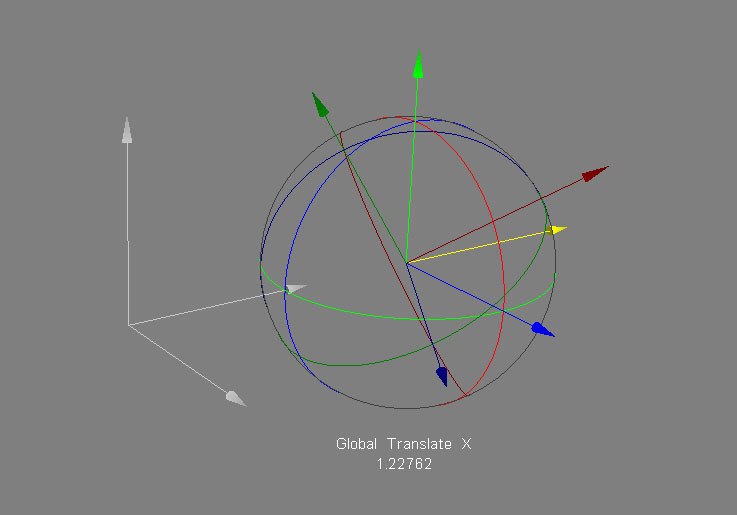
In this video I take a quick look at how Rotate Vector works, but more importantly, I dive into some issues related to different coordinate systems. In many scenarios where you use Rotate Vector (eg to rotate polygons), you have to understand what coordinates you’re working with.

http://vimeo.com/49603426

Hopefully, this will be the first in a series of vids.

Friday Flashback #87


From 2002, an invite to the XSI3.0 Launch event in Korea. Looks like fun to me.

* Orléans was the code name for XSI 3.0. See Friday Flashback #39 for all the code names

Update: Over on the Softimage mailing list, Stefan writes “That image was made at Filmtecknarna where I worked. It was a shot from a Madonna video.
Softimage|3d and softimage|toonz were our tools, and traditional animation.”

Converting a wildcard expression to a object collection


The old-school way to do it for a single object is with GetValue.
To get a collection of objects, use the XSICollection.Items property.

# Python
from sipyutils import disp        # win32com.client.Dispatch

allColl = disp("XSI.Collection");
allColl.items = Obj.FullName + ".polymsh.cls.*.Material"
// JScript
var allColl = new ActiveXObject("XSI.Collection");
allColl.items = Obj.FullName + ".polymsh.cls.*.Material"

Tip – Matching multiple regular expressions in a search


You can use the braces {} to match two or more regular expressions. For example, in the Preset Manager, {*vector*,*matrix*} will filter for all nodes/compounds that contain “vector” or “matrix”.

That’s a lot of regex typing to filter the ICE presets.

You can also use the braces in the scene search. There seems to be one little gotcha, you’ve got to use some wildcard character otherwise you won’t get a match. For example, {cylinder,null} doesn’t match anything, but {cylinder*,null} or {cylinder,null*} does.

See also:
Tip – Use wildcards to find the logic ICE nodes
Tip – Using the * wildcard for filtering in the ICE preset manager

Copying the global transform into a 4×4 Matrix ICE node


I saw–via an email notification–the question “how do I use the Global Transform of an object to create a 4×4 Matrix” posted on xsibase (sorry, I don’t go to xsibase anymore because of the “attack site” and “malware” warnings).

One way to do this is to add a “Copy Global Transform” command to the ICE node context menu. After you install this plugin, right click a 4×4 matrix node in an ICE tree, and it will copy the Global Transform from the first object in the selection list.

Note: error checking and stuff like that is left as an exercise for the reader (or for another blog post).

Here’s the plugin code for 2013. For 2012 or earlier, you have to change the AddCallbackItem2 call to AddCallbackItem.

si = Application
import win32com.client
from win32com.client import constants as C

null = None
false = 0
true = 1

def XSILoadPlugin( in_reg ):
	in_reg.Author = "blairs"
	in_reg.Name = "CopyTransfo2MatrixNodePlugin"
	in_reg.Major = 1
	in_reg.Minor = 0

	in_reg.RegisterMenu(C.siMenuICENodeContextID,"CopyTransfo2MatrixNode_Menu",false,false)

	return true

def XSIUnloadPlugin( in_reg ):
	strPluginName = in_reg.Name
	Application.LogMessage(str(strPluginName) + str(" has been unloaded."),C.siVerbose)
	return true

def CopyTransfo2MatrixNode_Init( in_ctxt ):
	oCmd = in_ctxt.Source
	oCmd.Description = ""
	oCmd.ReturnValue = true

	oArgs = oCmd.Arguments
	oArgs.AddWithHandler("Arg0","Collection")
	return true

def CopyTransfo2MatrixNode_Menu_Init( in_ctxt ):
	oMenu = in_ctxt.Source
	oMenu.AddCallbackItem2("Copy Global Transform","CopyTransfo2MatrixNode")
	return true
	
def CopyTransfo2MatrixNode( in_ctxt ):
	oNodeName = in_ctxt.GetAttribute("Target")

	o = si.Selection(0)
	t = o.Kinematics.Global.GetTransform2( None )
	m = t.Matrix4.Get2()

	# Get a matrix node
	n = si.Dictionary.GetObject( oNodeName )
	
	n.Parameters( "value_00" ).Value = m[0]
	n.Parameters( "value_01" ).Value = m[1]
	n.Parameters( "value_02" ).Value = m[2]
	n.Parameters( "value_03" ).Value = m[3]

	n.Parameters( "value_10" ).Value = m[4]
	n.Parameters( "value_11" ).Value = m[5]
	n.Parameters( "value_12" ).Value = m[6]
	n.Parameters( "value_13" ).Value = m[7]

	n.Parameters( "value_20" ).Value = m[8]
	n.Parameters( "value_21" ).Value = m[9]
	n.Parameters( "value_22" ).Value = m[10]
	n.Parameters( "value_23" ).Value = m[11]

	n.Parameters( "value_30" ).Value = m[12]
	n.Parameters( "value_31" ).Value = m[13]
	n.Parameters( "value_32" ).Value = m[14]
	n.Parameters( "value_33" ).Value = m[15]

CER uptime and session count stats


You can always find interesting stuff if you poke around in the registry. For example, the Customer Error Report (CER) mechanism logs some basic usage stats into the registry, under the keys like

HKEY_CURRENT_USER\Software\Softimage\SOFTIMAGE|SICORE Engine\C:|Program Files|Autodesk|Softimage 2013|Application|bin\ProductInfo

  • calUptime is the cumulative amount of time that Softimage has been open. By cumulative, I mean it is the total uptime for all Softimage sessions, ever.
  • upTime is the process uptime (not including any idle time). Again, this is a cumulative total.
  • crashCount is the number of crashes caught by CER.
  • SessionStartCount is the total number of Softimage sessions.
  • SessionCleanCloseCount is the total number of clean exits with no crash. You’ll notice in my case that the crashCount + SessionCleanCloseCount doesn’t equal the total number of sessions. That’s because CER doesn’t catch all crashes, and CER doesn’t catch things like the XSI.exe process being ended in the Task Manager.

* I believe that the uptime totals are in 100-nanosecond intervals.