Understanding the new Licensing check interval


As of the 2013 release, you can now set up your license server and Softimage workstations so that idle licenses are reclaimed by the license server and distributed to other machines.

An instance of Softimage (xsi.exe) is considered idle when there is no mouse or keyboard interaction, no command or script running, and no active progress bar. Softimage is never idle in batch mode.

2013 includes a new Licensing check interval preference (Preferences > General). Basically, this “check interval” is how long Softimage can be idle before it will give up its license. By default, the Licensing check interval is 1 minute. That means that if Softimage is idle for a minute, then the license server could reclaim the license and give it to some other user. To disable the license time-out feature, set the check interval preference to 0.

By default, the license server does not reclaim licenses when Softimage is idle. To configure the license server to reclaim idle licenses, you need to set the TIMEOUT option. To do that, create a plain text file named adskflex.opt in the same folder where your license file is located.

To set the TIMEOUT to 60 minutes for an Entertainment Creation Suite Ultimate license:

TIMEOUT 85926ENCSU_2013_0F 36000

To set the TIMEOUT for a 2012 Softimage license:

TIMEOUT 85705SFTIM_2012_0F 36000

You will need to restart the server to read the changes to the options file.

With the TIMEOUT option set on the license server, the next time your Softimage is idle for longer than the check interval, the license server may reclaim the license to give to another user. When you start working actively with Softimage again, it will try to check out another license from the server. If it gets a license, you’ll keep working and you’ll never know your license had been “lost” while idle.

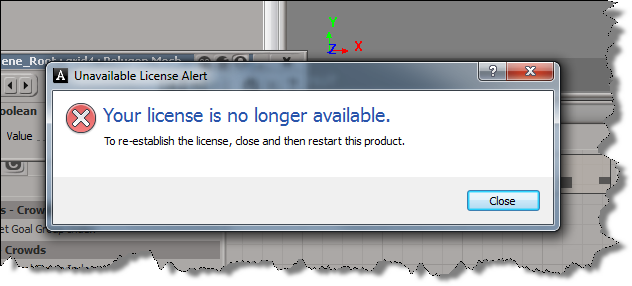
However, if no licenses are available, you’ll see this:
and then you’ll have a chance to save your work:

Crosswalk 2013 available


I see Crosswalk 2013 was posted over a week ago at autodesk.com/softimage-crosswalk.

Here’s the new features and fixes:

------------------------------------------------------------------------------------------
Crosswalk 2013.0 includes the following new features: 
------------------------------------------------------------------------------------------
* Softimage 2013 support
* 3dsmax 2013 support
* Maya 2013 support
* Softimage FBX plugin now uses the latest FBX library (2013).
* Support FBX User Normals
* Support FBX ICE Materials and ICE Textures
* Add "Import Action Source Only" option (For Softimage 2013 only)


------------------------------------------------------------------------------------------
Here's the detailed list of fixes:
------------------------------------------------------------------------------------------

Crosswalk Setup
------------------------------------------------------------------------------------------

SOFT-2523	Crosswalk does not register correctly for XSI 2011
SOFT-5213	Crosswalk - Empty Common Softimage Crosswalk folder created during installation


Softimage - FBX
------------------------------------------------------------------------------------------

SOFT-5811	FBX Diffuse port is missing during export / import of Blinn
SOFT-5832	FBX material are in the wrong shader node after export import.
SOFT-5036	Crash when you assign specific tiff with LZW compression
SOFT-5160	FBX XSI crash when export fbx bone using Export Envelope options
SOFT-5677	FBX ICE crash during FBX export in "Mesh_With_Set_ICEMaterials_Tree.scn"
SOFT-5352	FBX exporter is splitting UVs causing issues in pipeline
SOFT-5632	Unused UVs in an object with "Turn Internal Edge" operation will be wrong in the FBX export-import process
SOFT-2161	XSI FBX Export LEAKS when there is UV Texture assigned to material
SOFT-2588	FBXImport did not import fbx file (Robot_FixedForXSI) correctly
SOFT-4921	fbx - Import FBX a file that was exported from 3dsMax and the animation of the Character arms will be wrong.
SOFT-5303	Softimage fails to open medium to large FBX files, using both One-Click and FBX Import
SOFT-5462	Action Items imported from FBX take the length of current scene's start and end frames
SOFT-5430	FBX Import animation - Turn on FCurve by default
SOFT-4876	Unlocalized strings in "ExportCrosswalkOptions" window.
SOFT-4957	ACME-717 | Mobu to Softimage shape anim export problem
SOFT-5106	Truncated "XSIM" under "Crosswalk File Type" on "Scene_Root: ImportCrosswalkOptions" window
SOFT-1725	FBX: unable to export an image node with constant shader
SOFT-2308	The cancel button is not working in the crosswalk FBX import\export
SOFT-5205	"Convert Image Format" is not translated on the "Crosswalk FBX Export" window
SOFT-5206	"Materials And Textures" is not translated in "Include" tab on "Crosswalk FBX Import" window
SOFT-5107	Description on the "Scene_Root:ImportCrosswalkOptions" window is not translated
SOFT-5060	FBX Bone tool : missing a bone during export
SOFT-4807	Exporting several actors copies is not working as expected.
SOFT-4818	FBX imports possibly corrupted nulls
SOFT-4817	Can't rotate null in Z
SOFT-4673	Project templates and custom structures
SOFT-4686	ACME-404 | Performance issue with Crosswalk 2012
SOFT-4582	ACSO-415 | Please increase more the performance with Crosswalk 2012

Softimage - Collada/dotxsi
------------------------------------------------------------------------------------------

SOFT-5041	ACME-371 | Crosswalk | Shader parameters animated by the mixer are not persisted properly

#include statement in JScript


JScript doesn’t include anything like the #include statement, or like modules in Python.

But what you can do is read the contents of a file into a string, and then eval() the string. For example:

var fso = ActiveXObject("Scripting.FileSystemObject");
var f = fso.OpenTextFile( "//server/scripts/toinclude.js", ForReading );
var s = f.ReadAll();
eval(s);
s.Close();

Note that if there’s any errors in the included code, you won’t get the right line numbers in the error messages.

In JScript, another approach would be to create a custom object that has all the helper functions as methods. For an example of that kind of thing, check out the WizardHelperObj object in

%XSI_HOME%\Addons\sdkui\Application\Plugins\SDKWizards.js

Then you just provide one custom command that returns an instance of the custom object to whatever code needs to use the helper functions.

The case where there was no way to disable Face Robot


I’ve seen a few cases where a user couldn’t disable Face Robot, because there was no Face Robot module or menu.

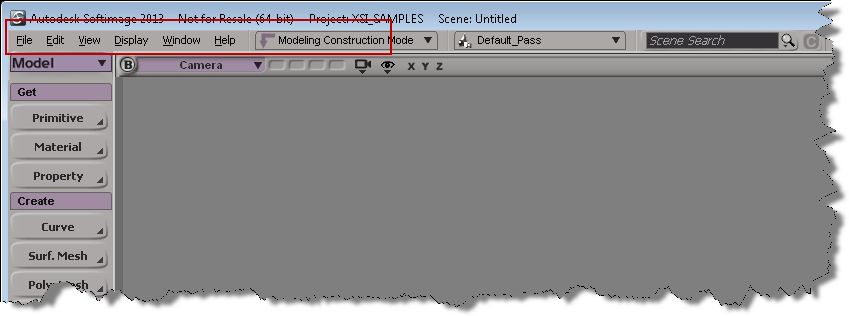
That’s because the module menus were hidden. To show the module menus, right click and empty area on the Softimage menu bar, and click Module Menus.\

Then you can click Face Robot > Disable Face Robot.

Copying tangent data in a crowd


Here’s a video walkthrough that shows how to get tangent data on the source actor and copy it to the actor copies. It’s basically a two-step process: first, copy the tangent data to a custom attribute on the mesh proxy, and the copy the attribute from the proxy to the actor copies. That’s basically what CrowdFX does for you for the default Texture_Projection.

I did this video for a customer who wanted the tangent data for the normal maps on the actor copies.

http://vimeo.com/41905747

Copying tangent data with ICE modeling


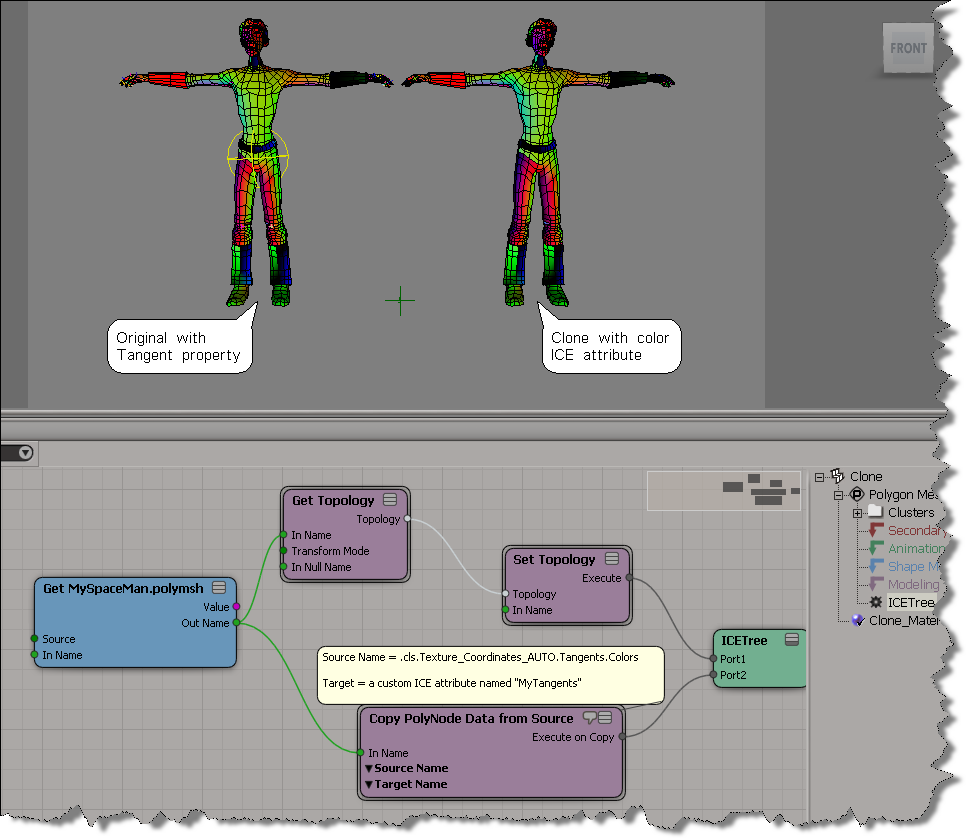
Here’s an example of using Copy PolyNode Data from Source to copy tangent data from a source mesh to a cloned mesh. Typically you would plug this into the Execute on Copy port of a Create Copies from Polygon Mesh or Clone Polygon Mesh, but here I’ve done something more basic.

To display the tangent data of the clone in the viewport, I’m using the Vertex Color Display Property setting (OpenGL Display tab of the material applied to the clone).

More on getting the version of Softimage used to create a scene


Whenever you open a scene, you’ll see a message like this logged to the script history:

# INFO : 4034 - Loaded scene was created with build number: 10.5.98.0 - compatibility version: 1000
Application.OpenScene("C:\\Users\\blairs\\MyProject\\Scenes\\2012SAP_Scene.scn", "", "")

# INFO : 4034 - Loaded scene was created with build number: 10.1.62.0 - compatibility version: 1000
Application.OpenScene("C:\\Users\\blairs\\MyProject\\Scenes\\2012SP1_Scene.scn", "", "")

If you want to know the version of Softimage that was used to create the scene, you need to check the specific build number (and there’s a couple of ways to do that, we’ll get to that in a second…).

The compatibility version is more a property of Softimage itself than of the scene. You can get the value of the project.CompatibilityVersion parameter, but it’s always going to be the compatibilty version of the current Softimage instance, not of the loaded scene.

p = Application.Dictionary.GetObject( "project.CompatibilityVersion" )
print Application.ClassName(p)
print p.Value

# OR

print Application.GetValue( "project.CompatibilityVersion" )

To find out the version of Softimage used to “build” a scene, you can use the printver utility, or look in the scntoc file. In this context, “build” means the version of Softimage that was last used to save the scene. I note that just opening a scene and saving it isn’t enough to bump up the build version. You need to do something to the scene, or at least do something and then undo it.

From Jeremie Passerin on the Softimage mailing list, here’s a Python snippet that reads the version from the scntoc:

# Python Code
import xml.etree.ElementTree as etree

ext = 'scntoc'
scn = 'C:\\Users\\blairs\\Project\\Scenes\\Test.%s' % ext

tree = etree.parse( scn )
root = tree.getroot()
version = root.get("xsi_version")

LogMessage(version)

Here’s a JScript snippet that reads the version from the scntoc:

var dom = new ActiveXObject("msxml2.DOMDocument.6.0");
dom.async = false;
dom.resolveExternals = false;

ext = 'scntoc';
scntoc = 'C:\\Users\\blairs\\Project\\Scenes\\Test.' + ext;

dom.load( scntoc );
var oNode = dom.selectSingleNode("xsi_file");
LogMessage( oNode.getAttribute( "xsi_version" ) );

If you don’t want to rely on the existence of a scntoc, you could use the printver.exe utility that ships with Softimage. Given a scene file, printver prints a message that looks like “This Scene was built with version: 11.0.525.0”.

Here’s a JScript snippet that runs printver and gets the version number from STDOUT:

// JScript
var WshShell = new ActiveXObject("WScript.Shell");

scn = "\\\\server\\Project\\Scenes\\Whatever.scn"

sExec = "printver " + scn

var oExec    = WshShell.Exec( sExec );

while ( !oExec.StdOut.AtEndOfStream )
{
	s = oExec.StdOut.ReadLine();
	if ( s.indexOf("This Scene was built with version") != -1 )
	{
		var version = s.split(":")[1].replace(/^\s\s*/, '').replace(/\s\s*$/, '');
	}
}

LogMessage( version )

And here’s a Python snippet:

import subprocess

scn = 'C:\\Users\\blairs\\Documents\\Support\\Project\\Scenes\\MySphere.scn'
p = subprocess.Popen( 'printver -l %s' % scn, stdout=subprocess.PIPE )
stdout = p.stdout.readlines()
print stdout
print stdout[-1].split(':')[1].lstrip().rstrip()

See the thread on the Softimage mailing list, which includes a VBScript snippet for getting the build version.

Checking the version used to create a scene


If you can live with the flash of a command prompt window, you can use subprocess.Popen to get the scene file version from printver.

import subprocess

scn = 'C:\\Softimage\\XSI-EXP_3.0\\Data\\XSI_SAMPLES\\Scenes\\dog.scn'
p = subprocess.Popen( 'printver %s' % scn, stdout=subprocess.PIPE )
stdout = p.stdout.readlines()
print stdout[-1].split(':')[1].lstrip().rstrip()
# 3.0.2002.0715


#scn = 'C:\\Softimage\\XSI_7.01_x64\\Data\\XSI_SAMPLES\\Scenes\\ICE\\Particle_Basic_Fire.scn'
# 7.0.2008.0708

Friday Flashback #69


1999 wireframe for the Blue Sky “Bunny”. “Nearly all the animation” in Bunny was done in SOFTIMAGE|3D.

  • While its moving story line has certainly contributed to the popularity of “Bunny,” in CG circles what makes this piece so special is the fact that it is the first computer-animated film whose environments were rendered entirely using radiosity. Radiosity is an advanced rendering technique that mimics the subtlest properties of natural light. For “Bunny,” the use of radiosity created an unparalleled dimensionality and organic realism never before attempted in a computer-animated film. Helping the Blue Sky team accomplish this feat was CGI Studio, the company’s proprietary lighting software.
  • …it took the Blue Sky crew 14.75 hours to render each frame of the animation (rendering was done on 14 Compaq AlphaServer RenderPlex systems, with a total of 164 processors)
  • Bunny’s fur was quite complex. There were more than 14,000 clumps of hair on Bunny’s body. Each clump consisting of approximately 50 hairs—were actually invisible cones that were texture-mapped with a mixture of short and long hairs. In total, there were 5640 long-hair cones, 8524 short-hair cones, and 269 shaggy-hair cones. Adobe Photoshop and Interactive Effects’ Amazon 3D Paint were used for texture-map creation.
  • Work on the models in “Bunny” began long before the NURBS modeling method was developed…nearly all of the models were built using an old modeling method called Constructive Solid Geometry (CSG).
  • Nearly all of the animation was done in Softimage. To make the CSG models animate in Softimage, Blue Sky wrote a program that converted the CSG models into polygonal representations that Softimage could understand. Because Amazon 3D Paint works with polygonal models, the team had to texture the CSG models using a combination of Photoshop and proprietary tools.
  • The only animation in “Bunny” that was done in CGI Studio is the scene at the end of the film in which 100 or so moths are flying around the afterlife environment. To animate the moths in that sequence, Blue Sky animator Rhett Collier wrote procedural animation code implemented through CGI Studio. “He figured out through math formulas how a moth would flap its wings. Then he transferred that over to his procedural program, which controlled how the moths came into the scene, making sure they didn’t interpenetrate each other, and varying the way each one flapped,” says Doug Dooley, one of the lead animators on the project. “It was a brilliant program, and very sophisticated procedural animation.”
  • All modeling and animation were done on Silicon Graphics workstations.