An infographic is the graphic visual representation of information, data or knowledge. In this example, from Doctor Steam, we have a color-coded map of the Softimage hotkeys.


An infographic is the graphic visual representation of information, data or knowledge. In this example, from Doctor Steam, we have a color-coded map of the Softimage hotkeys.
use a mix node for mixing multiple store_in_channel nodes
by Kzin
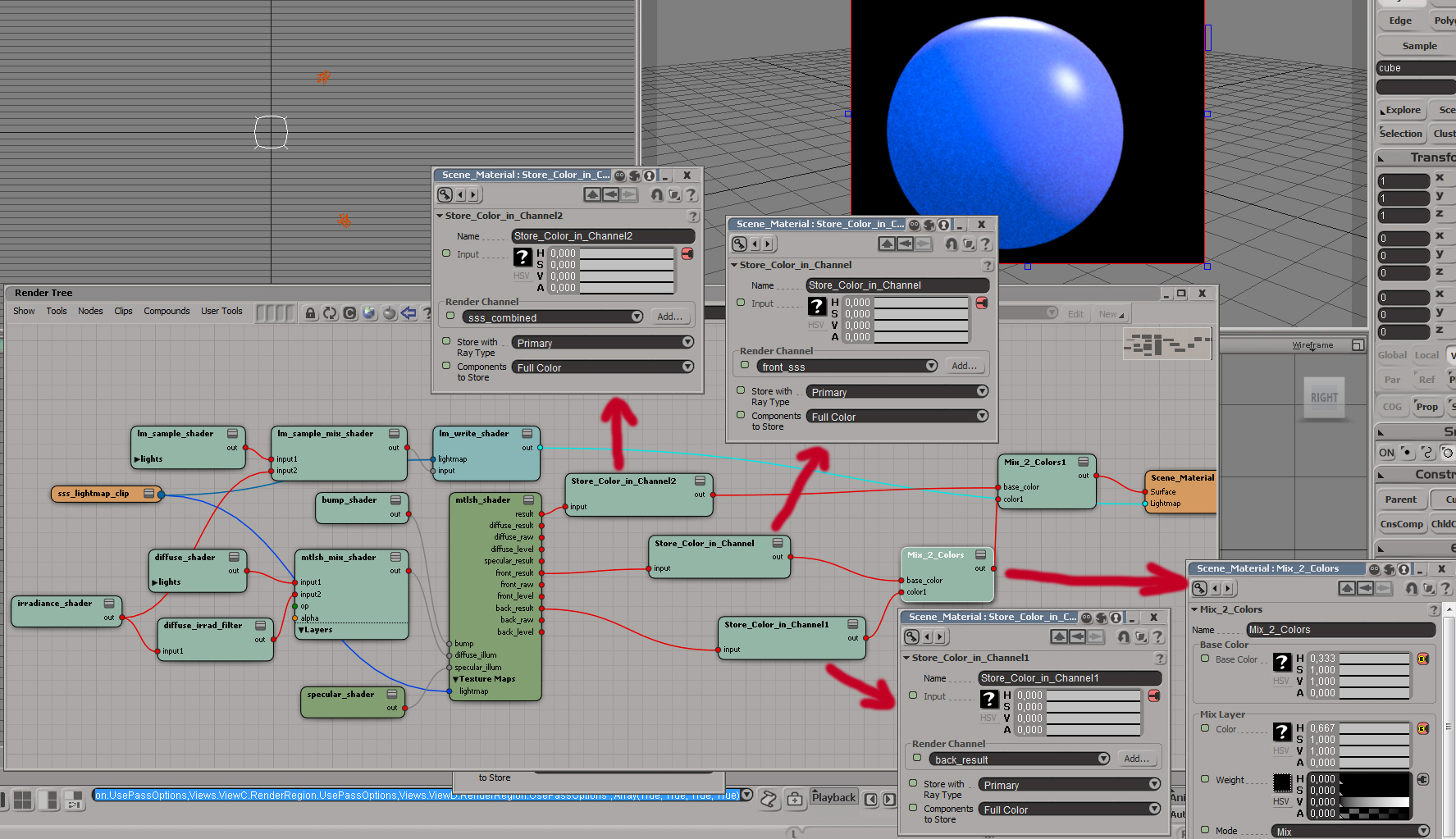
Node: Store Color in Channel, Mix 2 Colors
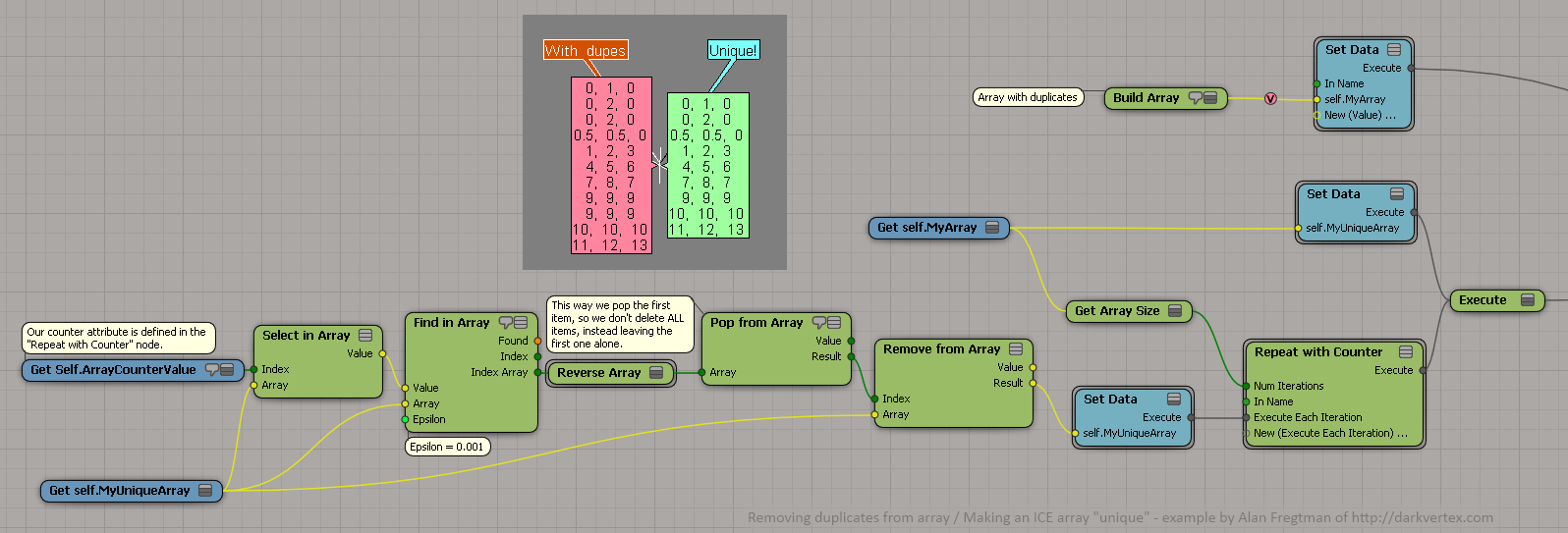
a way to make an ICE array unique
by Alan Fregtman
bezier patch in ICE
by Daniel Brassard

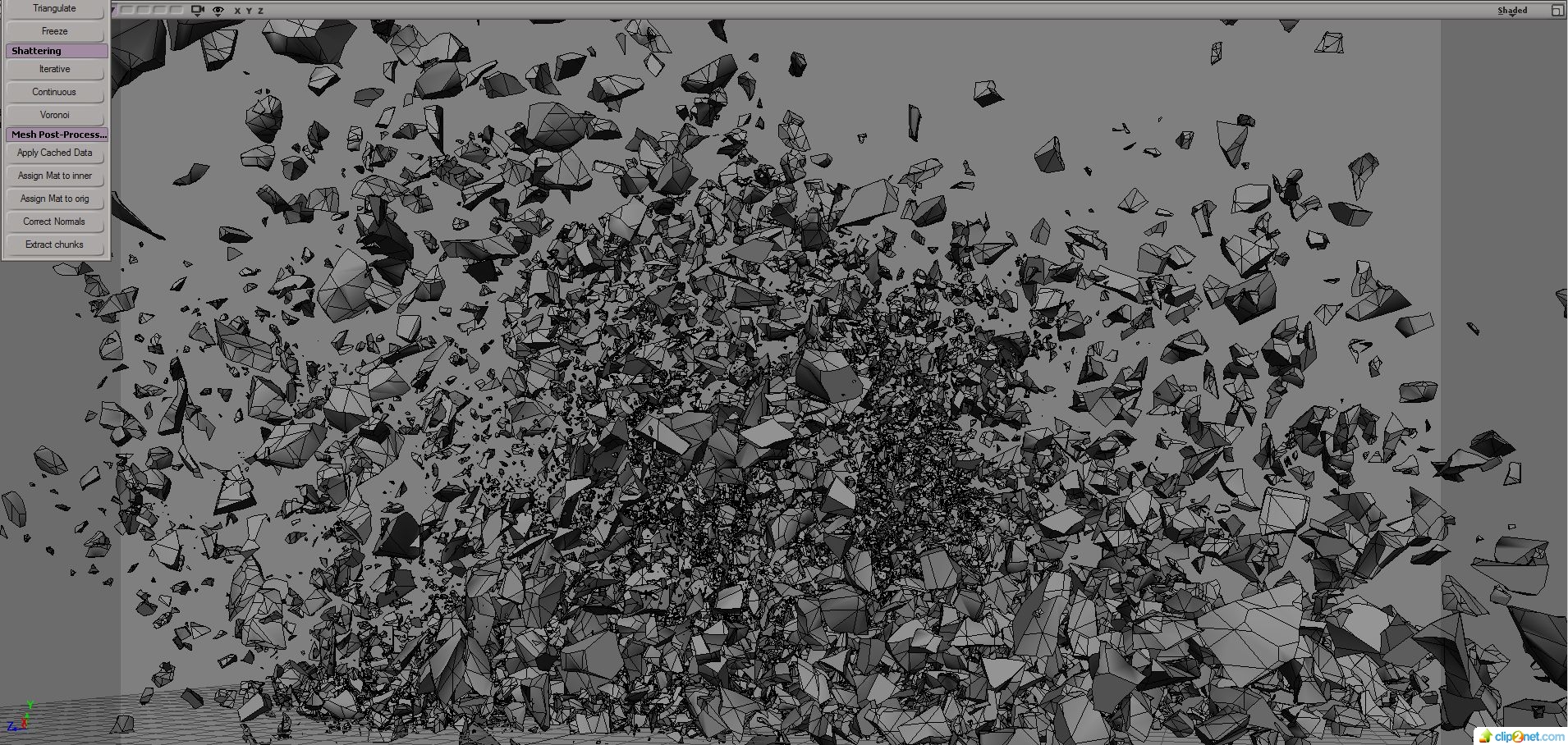
ICE Based shatter
by Mr Core
subdivide by texture
by denisVFX on softimage.ru:

Successfully saved scene before system failure
When Softimage crashes, it tries to save a crash recovery file. When you start up Softimage again, it asks you if you want to recover (“Improper exit detected. Do you want to recover?”)

If the crash recovery file isn’t usable, Softimage will try to load an AutoSave file, if there are any available (see this softimage-blog article on AutoSave).
Crash recovery files (and auto save files) are located in the [hidden] system\USER folder of the active project. For example:
C:\Users\blairs\Documents\Support_Project\system\blairs
where
Crash recover creates:
NOTE There’s a Scene Debugging preference for turning Crash Recovery on or off.
Code names for Softimage release through the years.
Thanks to Luc-Eric for the suggestion and the information.
 “When all you have is a hammer, everything looks like a nail.”
Hubble (reference models), Big Bang (handling large number of objects), Spliff (new shader IDE authoring environment) were projects that were developed independently of any release and then merged into a release when they were ready.
Moondust was the node-based particles project that grew into ICE.
Stardust and Apollo were projects that never came to fruition or were folded into other work.
Text version of the codename listing:
Continue reading
Here’s a bit of trivia for ya…
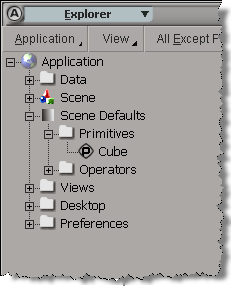
The first time you create a primitive, or create an operator, Softimage creates a property under the Scene_Defaults. This property serves as a “cache” for the default values in the PPG for a primitive or operator. Each time you create a new primitive (or operator), it will take the default PPG values from the Scene_Defaults. So for example, after you create one primitive cube, you could go to the Scene_Defaults and change the default cube size to 1.
These scene defaults are not saved with the scene, which limits their usefulness.
There may have been grander ambitions for the Scene_Defaults back in the very early days, but they were abandoned and it remains an incomplete, undocumented feature.
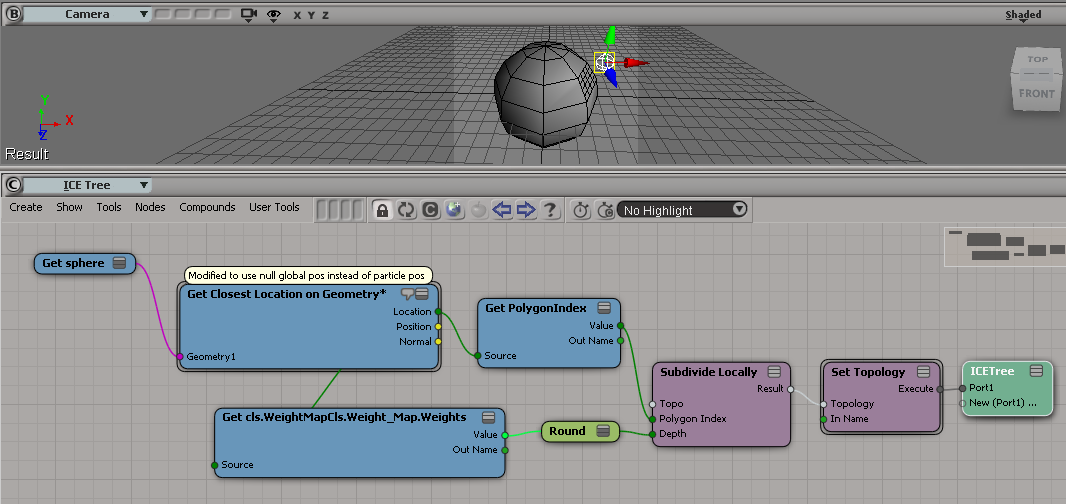
I saw a few questions about context recently, so I thought I’d try to work my way through those questions, starting with some basic scenarios. First up, then, is a question about using weight maps to control subdivision.
In this case, we’re dealing with per-point and per-polygon contexts.
A problem with using weight maps to control subdivision is that weight maps are per-point:

So you’ll end up with a context mismatch if you try to do something like this:

The context mismatch makes sense, since every polygon has more than one point, so what can a per-point weight map value mean for a polygon? One way around this would be to do something like this, and use the average of the per-point weight map values, but in a per-polygon context:

Here’s the full ICE tree:

Another approach would be to somehow use a per-polygon location, because with a location you can get the interpolated value of the weight map values:
In this video, I look into downloading and installing ICE compounds (.xsicompound files):
For example, suppose you want to know exactly where a TextureOp is located in the construction history (aka the operator stack).
A TextureOp object is nested under a cluster, not under the primitive, so you can’t use Primitive.ConstructionHistory.
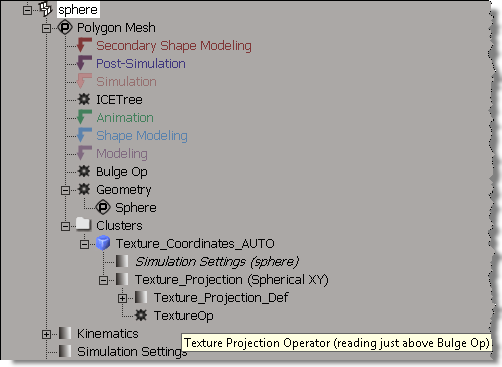
Try it, and you’ll see that the TextureOp does not show up.
from siutils import sisel	# Selection
from siutils import log		# LogMessage

for x in sisel(0).ActivePrimitive.ConstructionHistory:
	if x.BelongsTo( "MarkerOperators" ):
		sMarker = x.type

	log( "%s -> %s" %(sMarker,x.name) )
Instead, you’ll have to use DataRepository.GetConnectionStackInfo, which returns an XML description of the operator stack. The XML looks something like this (note that I had to use <_object> to stop wordpress from removing the <object> tag in my XML):
<?xml version="1.0"?>
<connections>
 	<connection>
 		<datacopy>0x000000001D7B7330</datacopy>
 		<hidden>false</hidden>
 		<_object>sphere.polymsh.modelingmarker</_object>
 		<objectid>533</objectid>
 		<region>2</region>
 		<type>out</type>
 	</connection>
 	<connection>
 		<datacopy>0x000000001F4C9F40</datacopy>
 		<hidden>false</hidden>
 		<_object>sphere.polymsh.cls.sample.clslist.Texture_Coordinates_AUTO.localprops.ClsProp.Texture_Projection.TextureOp</_object>
 		<objectid>571</objectid>
 		<region>2</region>
 		<type>out</type>
 	</connection>
 	<connection>
 		<datacopy>0x000000001C215310</datacopy>
 		<hidden>false</hidden>
 		<_object>sphere.polymsh.bulgeop</_object>
 		<objectid>532</objectid>
 		<region>2</region>
 		<type>in</type>
 	</connection>
</connections>
Here’s a Python snippet that uses ElementTree to parse the connectionstack XML and then log the TextureOp tooltip that says where the op reads from the stack:
from siutils import si		# Application
from siutils import sidict	# Dictionary
from siutils import sisel	# Selection
from siutils import siuitk	# XSIUIToolkit
from siutils import siut	# XSIUtils
from siutils import log		# LogMessage
from siutils import disp	# win32com.client.Dispatch
from siutils import C		# win32com.client.constants

from xml.etree import ElementTree as ET

prim = sisel(0).ActivePrimitive if si.ClassName(sisel(0)) ==  'X3DObject' else sisel(0)


stackInfo = siut.DataRepository.GetConnectionStackInfo( prim )
#log( stackInfo )
connections = ET.XML(stackInfo)
currentMarker =''

#
# Read XML into a list of tuples that looks like this:
# ('sphere.polymsh.secondaryshapemarker', 'sphere.polymsh.secondaryshapemarker')
# ('sphere.polymsh.postsimulationmarker', 'sphere.polymsh.postsimulationmarker')
# ('sphere.polymsh.simulationmarker', 'sphere.polymsh.simulationmarker')
# ('sphere.polymsh.ICETree', 'sphere.polymsh.simulationmarker')
# ('sphere.polymsh.animationmarker', 'sphere.polymsh.animationmarker')
# ('sphere.polymsh.shapemarker', 'sphere.polymsh.shapemarker')
# ('sphere.polymsh.modelingmarker', 'sphere.polymsh.modelingmarker')
# ('sphere.polymsh.cls.sample.clslist.Texture_Coordinates_AUTO.localprops.ClsProp.Texture_Projection.TextureOp', 'sphere.polymsh.modelingmarker')
# ('sphere.polymsh.geom', 'sphere.polymsh.modelingmarker')
#
currentMarker = '%s.%s' %(prim.FullName, 'above-secondaryshapemarker')
ops = []
for connection in connections:
		o = connection.find('object').text
		bHidden = connection.find('hidden').text == 'true'

		if o == currentMarker or bHidden:
			continue

		if o.endswith('marker'):
			currentMarker = o

		ops.append( (o, currentMarker ) )


#
# Go through list of tuples and find
# where TextureOp reads
#
for i in range( len(ops) ):
	oOp = sidict.GetObject( ops[i][0] )
	if oOp.type == 'TextureOp':
		print oOp.Name
		if i == len(ops):
			sRead = "(reading from bottom of primitive stack)"
		else:
			sRead = '(reading just above %s)' %(sidict.GetObject( ops[i+1][0] ).Name)

		print '%s %s' %(oOp.Name,sRead)
		# TextureOp (reading just above Bulge Op)
Displacement maps and scalar change range
by Hernandez

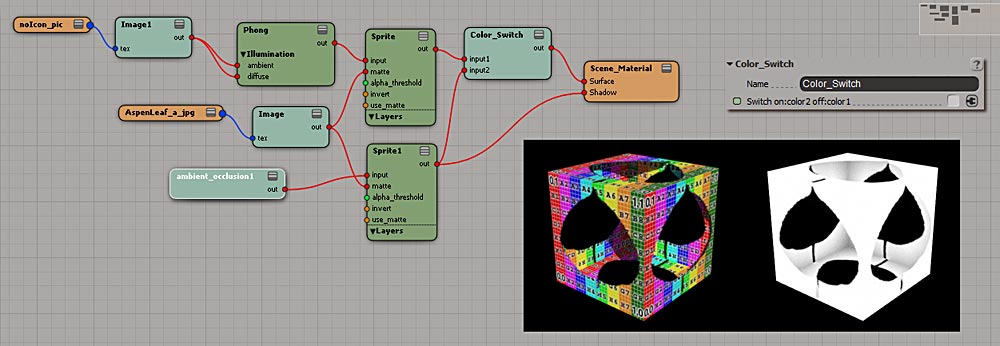
Color_switch for stenciled materials that need AO too
by Rork
Distribute points as grid
by Chris_TC

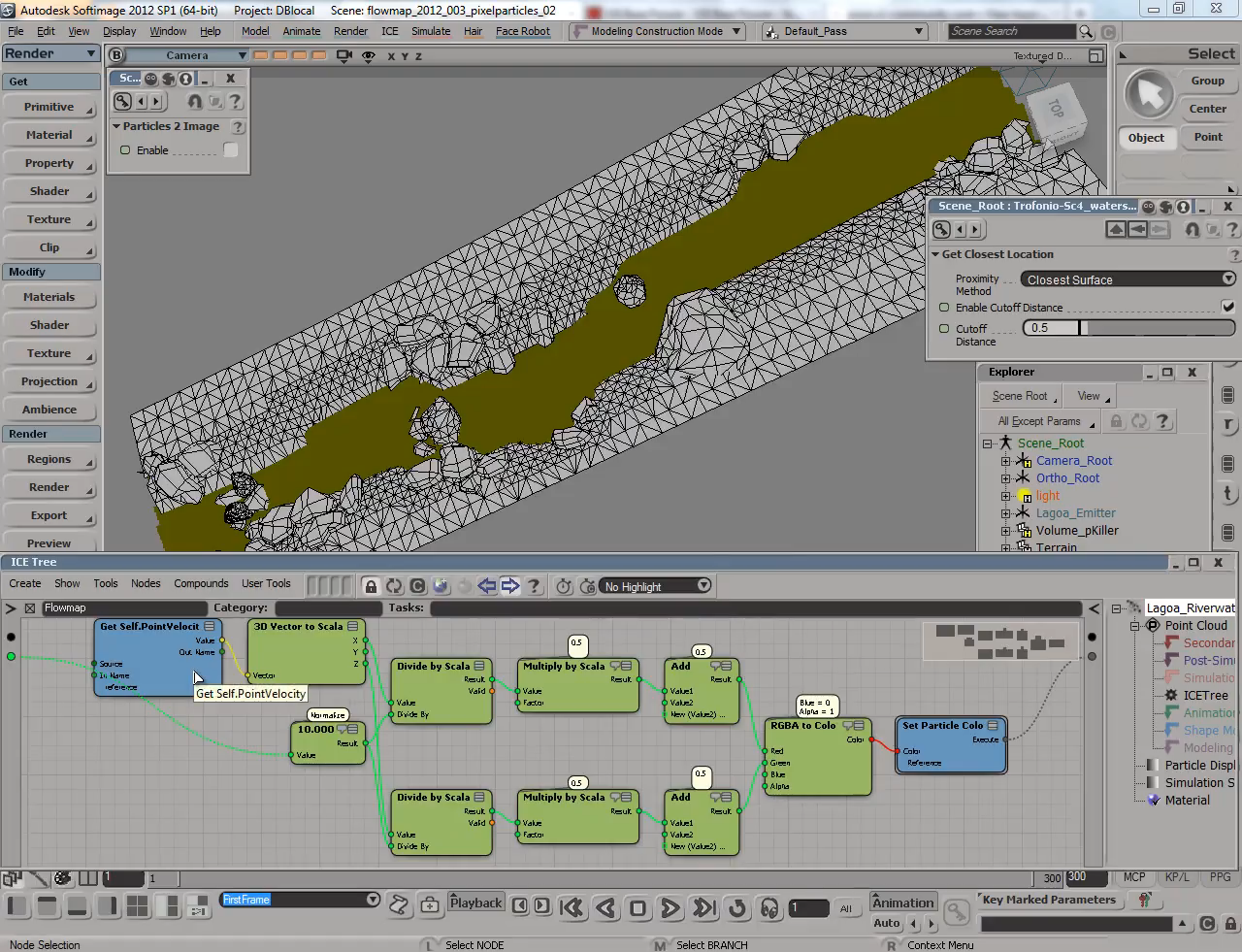
Creating 2D flowmaps with Softimage ICE particle simulations
by Alexander Hemery
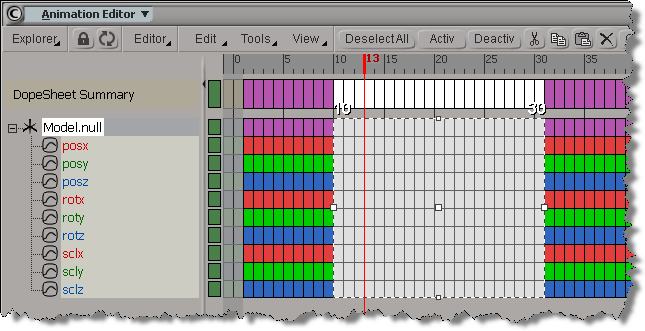 To copy and paste keys in a script, you have to also call SelectKeysInTimespan() to select the keys you want to copy.
If you copy and paste keys in the fcurve editor, SelectKeysInTimespan() is not logged, so it’s easy to get fooled into thinking you don’t need it (SelectKeysInTimespan is logged by the Dopesheet, however). hat tip luceric
SelectKeysInTimespan("null.kine.local.posx", siSetKeySelection, 65, 93, siInputParameters);
CopyKeys("null.kine.local.posx", 65, 93, null, true, siInputParameters);
PasteKeys("null1.kine.local.posx", 55, 83, false, null, siInputParameters, null, null, false, false);
Here’s some OM code that does about the same thing:
var x = Dictionary.GetObject("Model.null.kine.local");
var fcv = x.roty.Source;
LogMessage(ClassName(fcv));

var y = Dictionary.GetObject("null.kine.local");
var fcv1 = y.roty.AddFcurve();
fcv1.Set(fcv);
// Keep keys from 20-50
fcv1.RemoveKeys(1,19);
fcv1.RemoveKeys(51,null);
// Move to 0-30
fcv1.OffsetKeys(fcv1.Keys, -20);
 eX-SI
eX-SI 