ICE Guide
by Autodesk
Heh.
Golden Stair Plugin
by Lancelot

Modeling usage for Voronoi shattering effect
by nika ragua


ICE Guide
by Autodesk
Heh.
Golden Stair Plugin
by Lancelot
Modeling usage for Voronoi shattering effect
by nika ragua
Falling Bodies, the Softimage|3D plug-in for creating your own fall stunts.

From the Animats web site:
Animats introduced ragdoll physics technology in 1997. The Animats Falling Bodies> product was for years the most advanced ragdoll dynamics system on the market. Our technology for high-quality ragdolls is patented. This broad patent covers most spring/damper character simulation systems. If it falls, it has joints, it looks right, and it works right, it’s usually covered by our patent. This technology has been licensed to a major distributor of game development middleware.
https://vimeo.com/69759819
This is the original “ragdoll falling down stairs” animation, shown at the Softimage user group meeting in 1997. This is the first ragdoll demo ever. U.S. Patent #6,067,096.
–quote from the youtube version of this video (which wouldn’t play properly in Chrome, hence the vimeo version above)
Because of how ICE is optimized, it won’t bother setting data if you never use that data (see Beware of ICE Optimizations here). For example, suppose I have a point cloud where I set a per-point scalar value, but I never use that scalar data (because I just want to cache that value and use it later).
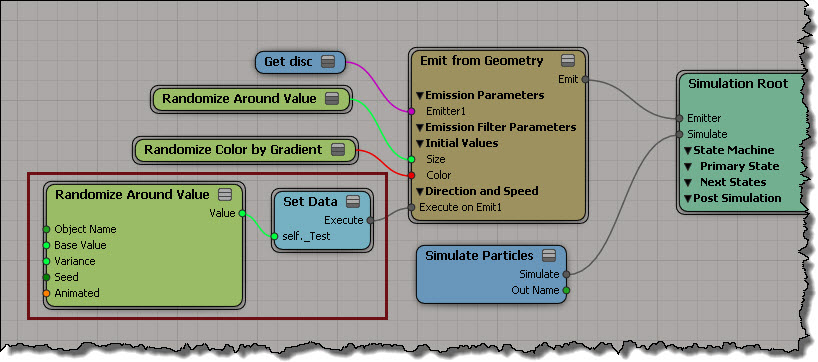
That scalar attribute is never used, so it is optimized away (it makes sense: you’re not using it, so why keep it?). You won’t see that attribute in the Cache Manager, and the Cache on File node won’t write it out (even if you add that attribute to the list).
One way to force ICE to evaluate the attribute so you can cache it is to create an Attribute Display property for the attribute, but disable Show Values.

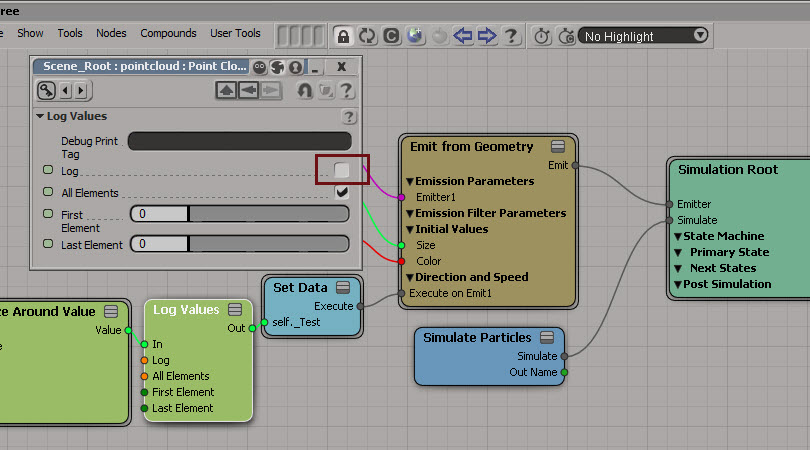
Another way is to insert a Log Values node, and disable logging.
Yet another way is to use Show Values. Enable Show Values for Tagged Components Only to hide the values (if you’re going to tag components, you could set the Display % to 1).
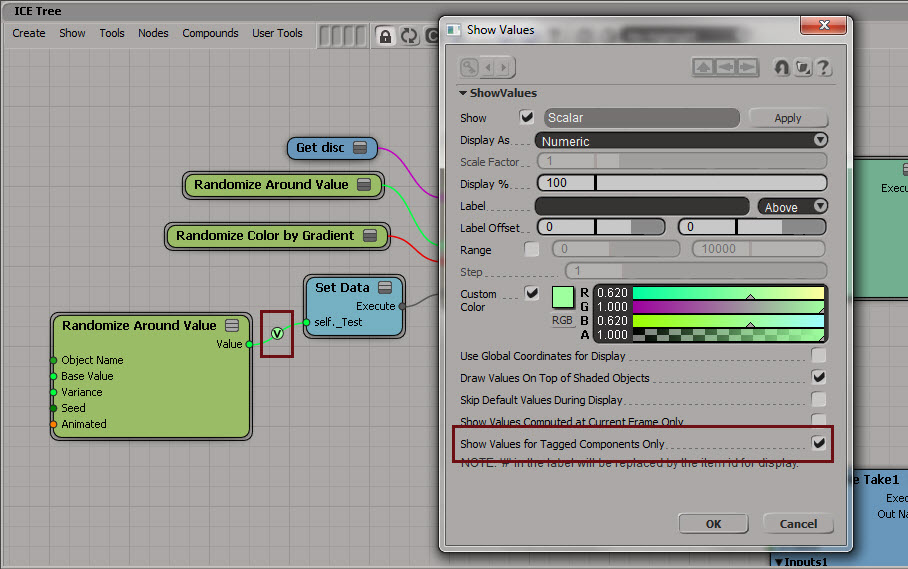
And last but not least, if you have emTools from Mootzoid, you can use the Force Value Evaluation node, which uses a Show Values on a value that is never set.
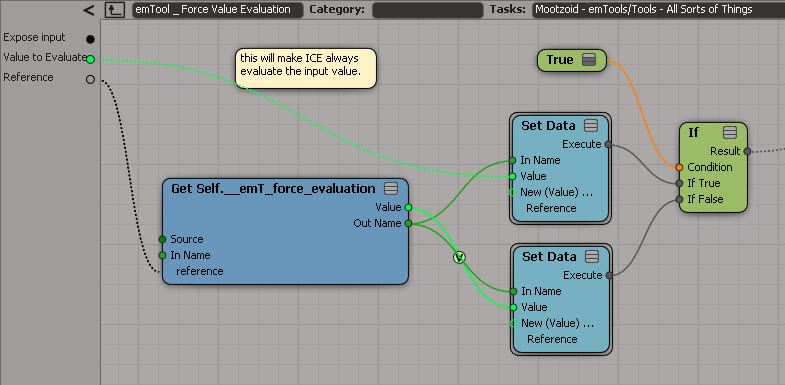
hat tips to Stefano, Mathieu, and Vincent on the SItoA list
Autodesk Softimage 2014 Service Pack 2 is available for download.
Bugs Fixed in this Release
To take advantage of the fix for slow attribute access, you’ll probably need to recompile your plugins.
Also of interest is this known issue:
The workaround: don’t use the skip flag 🙂
Instead, you’ll need to specify frame ranges.
Here’s one way to get the materials used by model. Note that this will also get any materials applied to clusters.
si=Application

def get_mdl_materials( m ):
	from win32com.client import constants as c
	return m.FindObjects( c.siMaterialID )

Application.GetPresetModel("Man_Character", "Man_Character", "", "Character.Character_Designer")
for m in get_mdl_materials( si.Dictionary.GetObject( 'Man_Character' ) ):
	print m
And here’s an old-school way that uses a couple of string expressions:
si=Application
mdl = si.Dictionary.GetObject( 'Man_Character' )

import win32com.client
mats = win32com.client.Dispatch( "XSI.Collection" )
mats.Items = '{0}.{1},{0}.{2}'.format(mdl.Name, "*.cls.*.material", "*.material")

for m in mats:
	print (m)
Constrain strand along simulated shape
by Renaud Bousquet

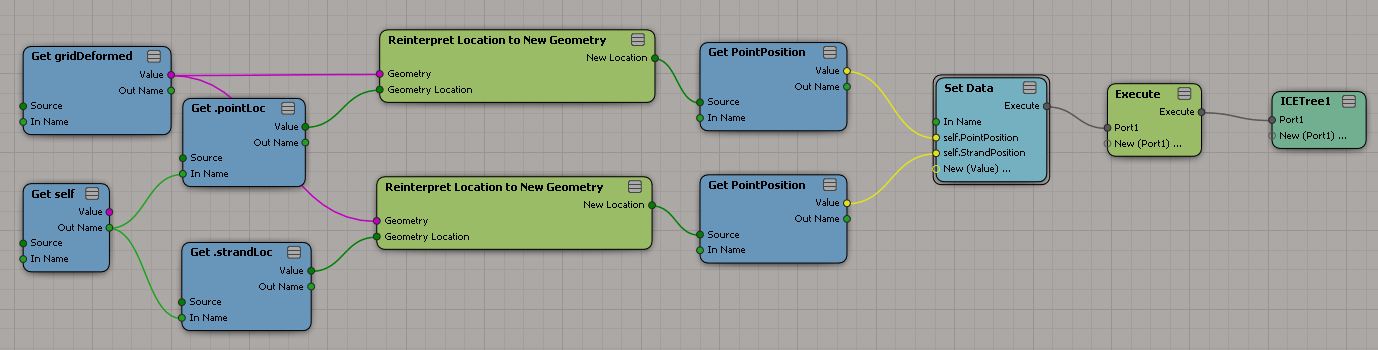
by Edy Susanto

Closest Location in UV space?
by Eric Thivierge

Gear PPGs with Embedded Layout & Logic
ICE Topo Symmetry Analyser
And old picture from 2004 that I found: Moving the Shape Tape.

What stands out to me is how ugly the old monitors were.
On the Read tab of the Cache Manager there’s a Dump Header button:
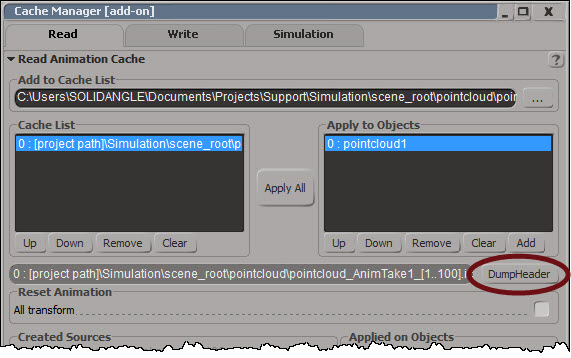
Dump Header dumps the cache header and attribute list to XML and pops up NetView:

If you want to dump the XML and parse it yourself, you can do it with this scripting command:
Application.DumpCacheHeader("[project path]\\Simulation\\scene_root\\pointcloud\\pointcloud_AnimTake1_[1..100].icecache", False)
Top 50 most common keyboard mappings in the default Softimage keymap.
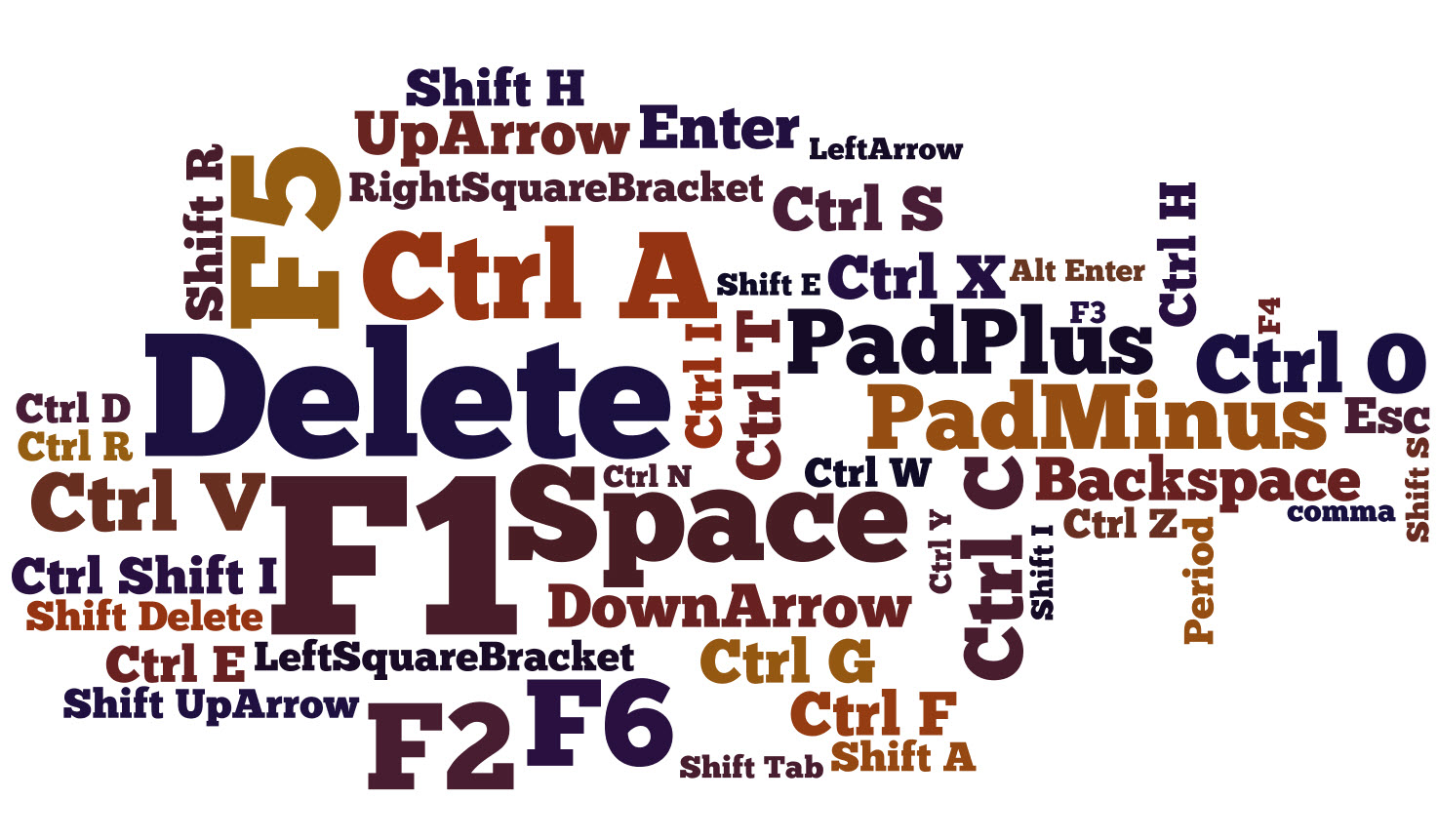
After the obvious F1 (22 assignments) and Delete (17), the next most-assigned key is F5 with 15.
You can use the PageUp and PageDown keys to move back and forward through the history of recently inspected nodes.

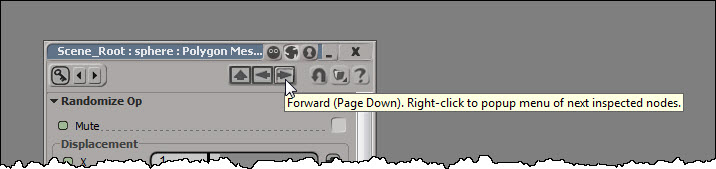
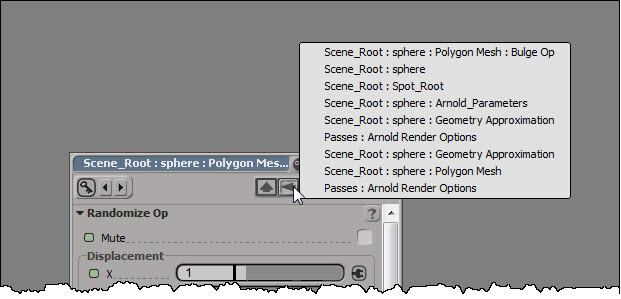
If you right-click one of those arrows, you can see the history list of inspected nodes, and select a specific node to inspect:
If there’s no property page open at the moment, pressing PageUp (or PageDown) will open a property page and load the most recently inspected node.
Here’s a related TD Survival video on PageUp (and some other handy shortcut keys):
 eX-SI
eX-SI 