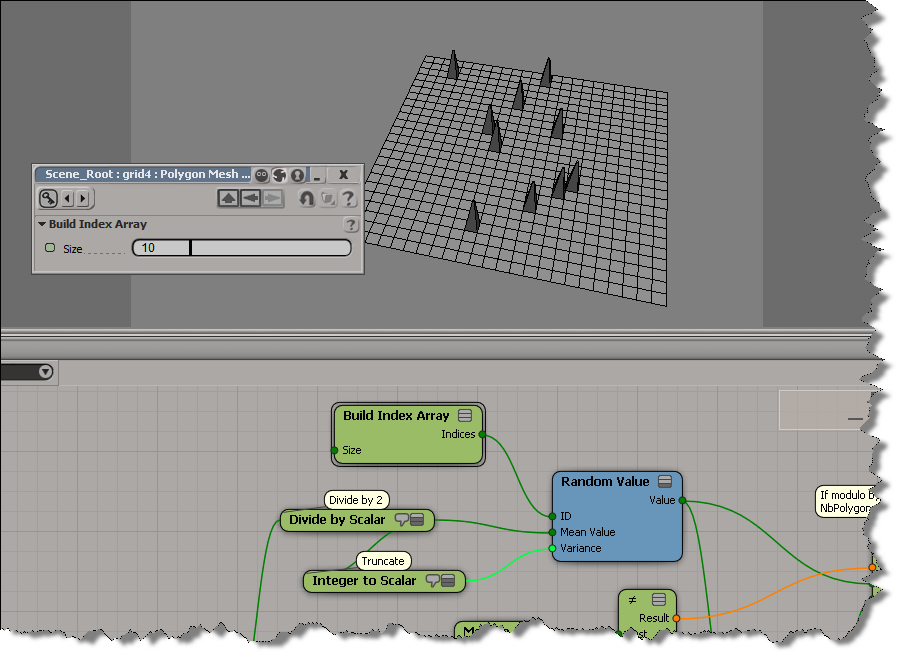
In this video, I show how to deal with actors that have texture projections with non-default names. The Crowd ICE compounds are set up to look for texture projections with the default “Texture_Coordinates_AUTO.Texture_Projection” name.
Tag Archives: ICE
ICE Modeling – Extruding a random polygon
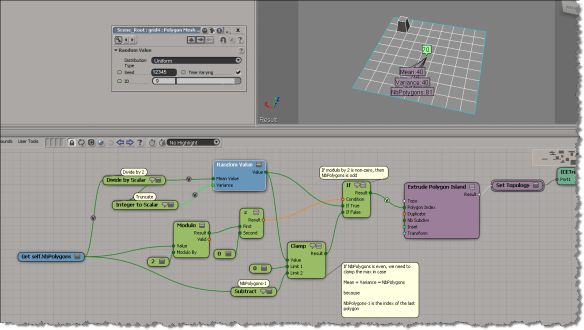
All you have to do is plug a Random Value node into the Polygon Index port, and then set the Mean Value and Variance. If you then play around with the ID (of the Random Value), you’ll get a different polygon extrusion.
Most of this tree is for setting the Mean and Variance. If I have an odd number of polygons, say 81, then a mean of 40 and a variance of 40 will cover the range of polygon indices (0-80). But if I have an even number of polygons, say 80, then a mean of 40 and variance of 40 might give me an index of 80, which is out of range.
To randomly extrude more than one polygon, just feed a bunch of IDs into the Random Value node, like this:
I increased the number of polygons to avoid getting the same random number multiple times.
Coloring crowds – using a custom ICE attribute for the shirt color
I struggled with this for awhile–it wasn’t easy to get my custom ShirtColor attribute to show up in the Color Attribute shader.
http://vimeo.com/40657685
Coloring crowds
Here’s my re-make of Guillaume Laforge’s “Crowd colors” video that was posted on the Softimage mailing list.
In this video, we show you how to:
- Use an ICE attribute on the crowd mesh to randomize the colors in a material
- Get the particle colors and using them for the material color
ICE modeling – Extrude and extrude
Here’s a little intro video that shows how to chain together some ICE Modeling nodes to build extrusions on top of extrusions.
See Extrude and extrude and extrude… on si-community.
Workaround for forcing the evaluation of ICE attributes
ICE Modeling example – extruding and extruding a grid
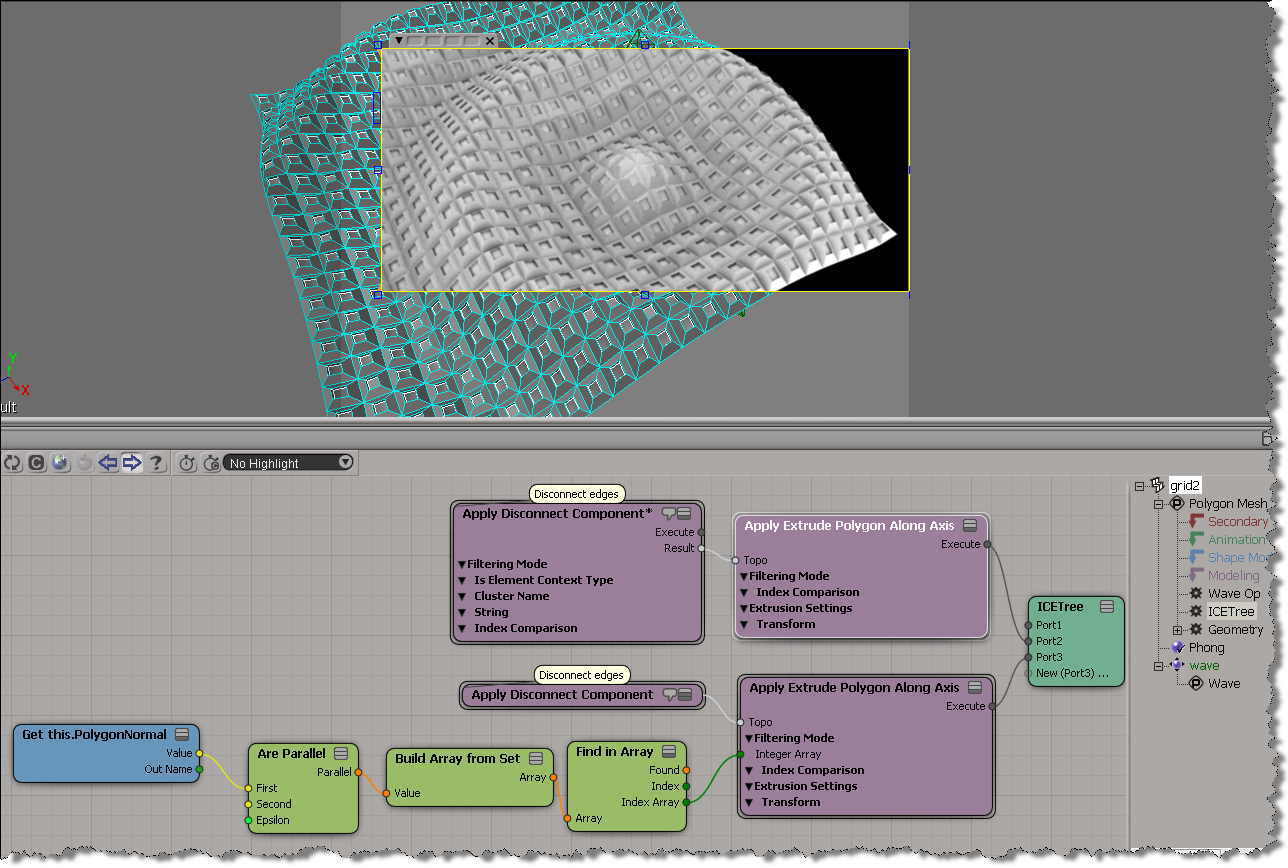
Here’s a simple example that extrudes the polygons in a grid, and then applies a second extrude op to the extruded polygons.
I modified the Disconnect compound to output the Topo, just to make it easter to connect things. Really, I should probably daisy-chain everything in this example.
Chris_TC did something more sophisticated here.
Tip: Use drag-and-drop to automatically connect ICE nodes
You can drop scene objects or other ICE nodes onto existing ICE tree nodes, and if possible, Softimage will automatically connect the nodes.
Deleting overlapping particles
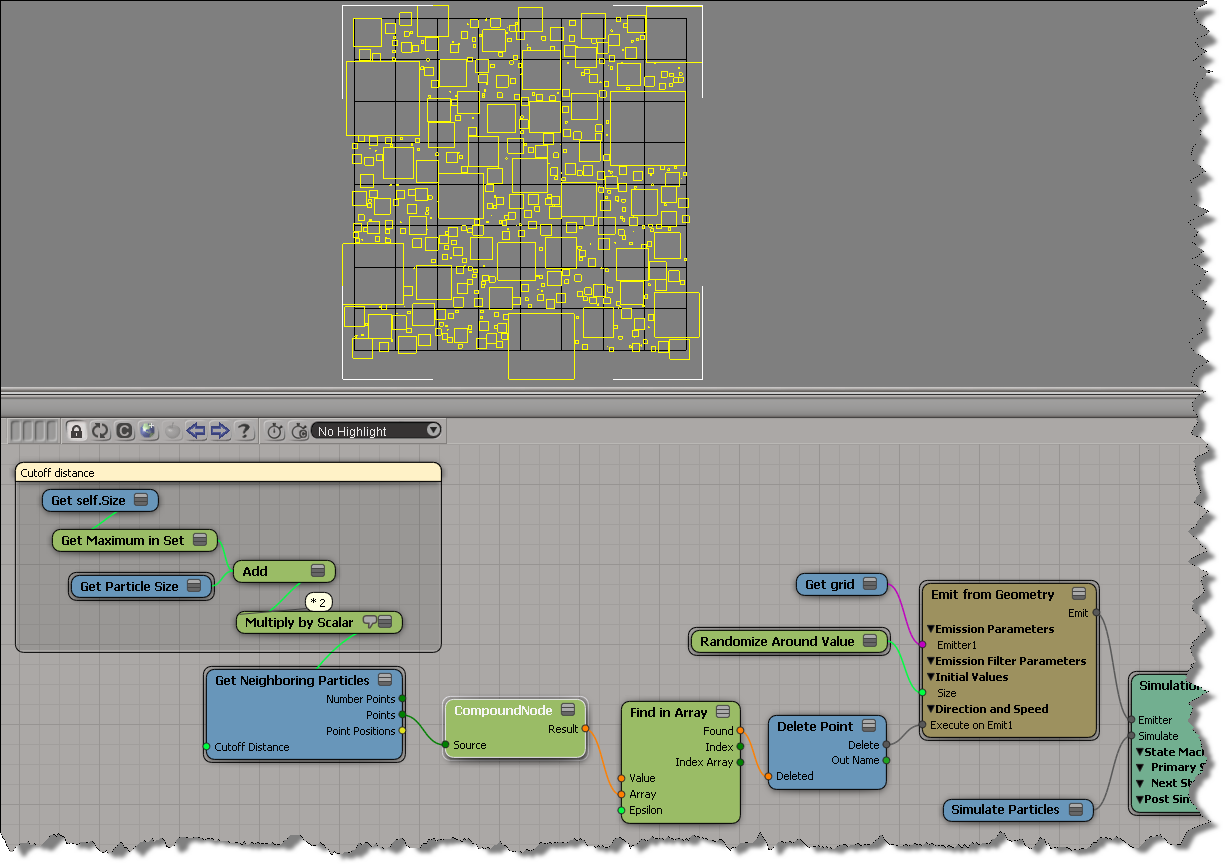
As an exercise, I built this ICE tree that prevents any overlapping particles (for non-rotated particles only). It works by comparing the X, Y, and Z values of the vector between two points with the combined size of the two particle shapes (which are boxes in this example).
The compound node returns an array of booleans, one for each neighbour. The boolean flags indicate whether or not the particles would overlap, so if at least one is True, then I delete the particle. If you must see it, here’s the compound:
![]()
Particles flowing along curve at regular intervals
In this video, I simplify an Emit compound to get a specific effect: in this case, a flow of particles along a curve where there is a specific time interval between each particle.
Here’s a previous post about emitting particles at regular intervals.