Here’s a quick way to repeat the scripting commands logged for something you just did in Softimage:
- In the script history log, highlight the lines you want to repeat.
- Right-click and click Repeat.
After last Friday’s flashback post, Len Krenzler posted a link to the Def Leppard “Let’s get rocked” video, which was done in 1992 with Softimage|3D:
Came across this old Def Leppard piece, it was on the Softimage3D demo
reel the first time I saw it. Modeling has come a long way since then
but it was quite impressive at the time.
Luc-Eric pointed out that at 1:14 of the vid, you can see Softimage Eddie (click through the screenshot below to see an animated gif of a node connection operation):
At other points in the video, you can see Softimage|3D:

Googling “def leppard” and “softimage” quickly led me to the Reboot series from MainFrame, where I found this bit of info:
There’s also a few interesting mentions of Softimage in the history of the Reboot series:
In this video, I take a look at how to offset ICE simulations, and I look into the role of the Simulation Environment.
As I posted yesterday, an ICE compound with no category and no task will not show up in the Preset Manager. Here’s a Python script that checks .xsicompound files and reports any that are missing both the category and tasks attributes.
I use ElementTree to parse the .xsicompound XML, and get the category and tasks attributes from the xsi_file element, which looks something like this:
<xsi_file type="CompoundNode" name="abScatter" author="Andreas Bystrom" url="http://www.wurp.net" formatversion="1.4" compoundversion="1.0" constructionmode="Modeling" backgroundcolor="7765887">
Here’s the script.
from siutils import si # Application
from siutils import sidict # Dictionary
from siutils import sisel # Selection
from siutils import siuitk # XSIUIToolkit
from siutils import siut # XSIUtils
from siutils import log # LogMessage
from siutils import disp # win32com.client.Dispatch
from siutils import C # win32com.client.constants
from xml.etree import ElementTree as ET
import os, fnmatch
#
# Generator function for finding files
#
def find_files(directory, pattern):
for root, dirs, files in os.walk(directory):
for basename in files:
if fnmatch.fnmatch(basename, pattern):
filename = os.path.join(root, basename)
yield filename
#
# Check .xsicompound file for category and tasks attributes
#
def check_xsicompound( f ):
try:
tree = ET.parse( f )
except Exception, inst:
print "Unexpected error opening %s: %s" % (f, inst)
# Get the xsi_file element
xsi_file = tree.getroot()
# name = xsi_file.attrib['name']
# Check the category and task elements
cat = False
tasks = False
if 'category' in xsi_file.attrib and xsi_file.attrib['category'] != '':
cat = True
if 'tasks' in xsi_file.attrib and xsi_file.attrib['tasks'] != '':
tasks = True
# return False if both are blank
return cat or tasks
#
#
#
# list of compounds with no category and no tasks
compounds = []
# check all compounds in all workgroups
for wg in si.Workgroups:
d = siut.BuildPath( wg, "Data", "Compounds" );
for filename in find_files(d, '*.xsicompound'):
b = check_xsicompound( filename )
if not b:
compounds.append( filename )
log( "%d compounds found with no category and no tasks:" % (len(compounds)) )
for f in compounds:
log( f )
I’ve seen a few customers reporting that they put .xsicompound files in the Data\Compounds folder of a workgroup, but the compounds don’t show up in the Preset Manager.
This can happen when the compound doesn’t specify anything for Category or Tasks. From the docs:
If a compound is exported without a category or task, it is not available in the preset manager or nodes menu. This allows you to create utility nodes that perform specific functions inside other compounds but that are not meant to be used generally. You can add such nodes to an ICE tree using Compounds Import Compound or by dragging the compound file from a Softimage file browser or folder window.
Here’s a quick review of the Category and Tasks values:
The latest Flash Player includes 32- and 64-bit versions of the player, so you can now see Flash content in NetView in 64-bit Softimage.
64-bit Windows 7 only!
Flash Player does not support 64-bit versions of Windows XP and Vista. Flash Player 11 now includes support for Windows 7 64-bit.
I hadn’t heard about this until I read it on the Web, so I don’t know what, if anything, it will mean for Softimage (or those other two DCCs 😉
Autodesk says it want to accelerate Otoy’s development, and plans to integrate Otoy technology into existing Autodesk Media & Entertainment products.
via GraphicSpeak » Autodesk invests in Otoy to advance rendering, compression, and cloud use.
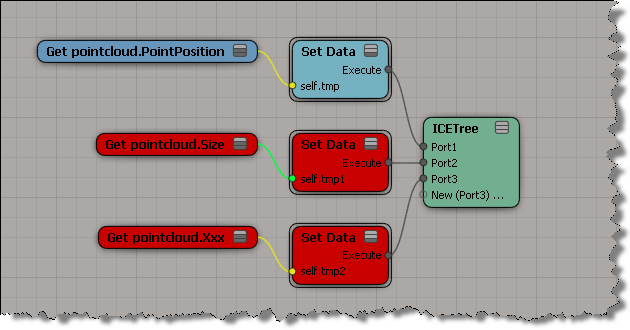
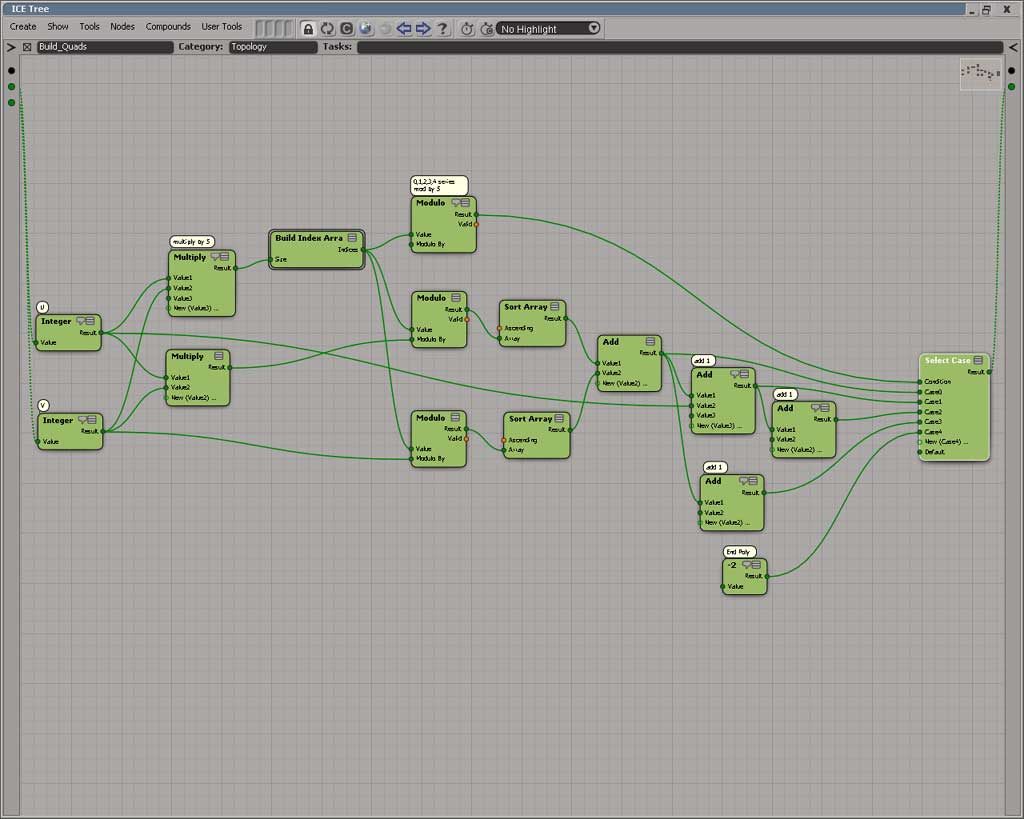
I didn’t see too many ICE trees or render trees this week, and I do look in a lot of different places 😉
Make your own ICE topo operator to animate the disconnect of components
by Gray

Nodes/attributes: Apply Disconnect Component, IsElement
Using Bullet to lay out objects
by Todd Akita on AREA Japan


Nodes/attributes: Add Point, Init Particle Data, Get Element Index, Instance Shape, Simulate Bullet Rigid Bodies
Some interesting-looking voxel videos and compounds from 2nd reality on Vimeo
Haven’t had a chance to check them out myself yet…
Here’s the most recent video.
I’d recommend going to Vimeo so you can see all the vids and download the related compounds.
The other day, I noticed that the Maya Help was using Chrome instead of my default browser (currently IE). I didn’t see anything in the docs about specifying a specific browser, so I figured it must be something about my system.
So, like I often do, I fired up Process Monitor to see if I could figure out why. And it was pretty simple.
I found that
HKEY_CURRENT_USER\Software\Classes\.htm
was set to
ChromeHTML
even though my default browser was IE.
So I changed it back to htmlfile, and voila, Maya 2012 opened the online help in IE again. There are other, similar keys, but I didn’t touch them:
HKEY_CURRENT_USER\Software\Classes\.html HKEY_CURRENT_USER\Software\Classes\.html HKEY_CURRENT_USER\Software\Classes\.shtml HKEY_CURRENT_USER\Software\Classes\.xht HKEY_CURRENT_USER\Software\Classes\.xhtml HKEY_CLASSES_ROOT\.html
Here’s a video walk through that shows how Process Monitor can be used to diagnose and troubleshoot this kind of problem.
http://vimeo.com/31272761