Offsetting ICE simulations


In this video, I take a look at how to offset ICE simulations, and I look into the role of the Simulation Environment.

  • Use the Limit by Time Range node to control when a simulation (emission) is active.
  • When you create a simulated ICE tree, it is added to the current simulation environment.
  • Models don’t include the simulation environment.
  • Merged scenes usually bring in their own simulation environment, which doesn’t always match the number of frames in the current scene.

http://vimeo.com/31542410

Checking .xsicompounds for no category and no tasks


As I posted yesterday, an ICE compound with no category and no task will not show up in the Preset Manager. Here’s a Python script that checks .xsicompound files and reports any that are missing both the category and tasks attributes.

I use ElementTree to parse the .xsicompound XML, and get the category and tasks attributes from the xsi_file element, which looks something like this:

<xsi_file type="CompoundNode" name="abScatter" author="Andreas Bystrom" url="http://www.wurp.net" formatversion="1.4" compoundversion="1.0" constructionmode="Modeling" backgroundcolor="7765887">

Here’s the script.

from siutils import si		# Application
from siutils import sidict	# Dictionary
from siutils import sisel	# Selection
from siutils import siuitk	# XSIUIToolkit
from siutils import siut	# XSIUtils
from siutils import log		# LogMessage
from siutils import disp	# win32com.client.Dispatch
from siutils import C		# win32com.client.constants

from xml.etree import ElementTree as ET
import os, fnmatch


#
# Generator function for finding files
#
def find_files(directory, pattern):
     for root, dirs, files in os.walk(directory):
         for basename in files:
             if fnmatch.fnmatch(basename, pattern):
                 filename = os.path.join(root, basename)
                 yield filename


#
# Check .xsicompound file for category and tasks attributes
#
def check_xsicompound( f ):
	try:
		tree = ET.parse( f )
	except Exception, inst:
		print "Unexpected error opening %s: %s" % (f, inst)

	# Get the xsi_file element
	xsi_file = tree.getroot()

#	name = xsi_file.attrib['name']

	# Check the category and task elements
	cat = False
	tasks = False 

	if 'category' in xsi_file.attrib and xsi_file.attrib['category'] != '':
		cat = True
		
	if 'tasks' in xsi_file.attrib and xsi_file.attrib['tasks'] != '':
		tasks = True

	# return False if both are blank
	return cat or tasks


#
#
#

# list of compounds with no category and no tasks
compounds = []

# check all compounds in all workgroups
for wg in si.Workgroups:
	d = siut.BuildPath( wg, "Data", "Compounds" );

	for filename in find_files(d, '*.xsicompound'):
		b = check_xsicompound( filename )
		if not b:
			compounds.append( filename )

log( "%d compounds found with no category and no tasks:" % (len(compounds)) )
for f in compounds:
	log( f )

Workgroup ICE compounds missing from Preset Manager


I’ve seen a few customers reporting that they put .xsicompound files in the Data\Compounds folder of a workgroup, but the compounds don’t show up in the Preset Manager.

This can happen when the compound doesn’t specify anything for Category or Tasks. From the docs:

If a compound is exported without a category or task, it is not available in the preset manager or nodes menu. This allows you to create utility nodes that perform specific functions inside other compounds but that are not meant to be used generally. You can add such nodes to an ICE tree using Compounds Import Compound or by dragging the compound file from a Softimage file browser or folder window.

Here’s a quick review of the Category and Tasks values:

  • Category specifies where the compound is listed on the Tool tab of the Preset Manager.
  • Tasks specifies where the compound is listed on the Task tab of the Preset Manager. The format of Tasks is task/sub-task. For example, “Particles/Getters” or “Deformation/Skinning”.

GraphicSpeak Β» Autodesk invests in Otoy to advance rendering, compression, and cloud use


I hadn’t heard about this until I read it on the Web, so I don’t know what, if anything, it will mean for Softimage (or those other two DCCs πŸ˜‰

Autodesk says it want to accelerate Otoy’s development, and plans to integrate Otoy technology into existing Autodesk Media & Entertainment products.

via GraphicSpeak Β» Autodesk invests in Otoy to advance rendering, compression, and cloud use.

Screenshots of the week


I didn’t see too many ICE trees or render trees this week, and I do look in a lot of different places πŸ˜‰

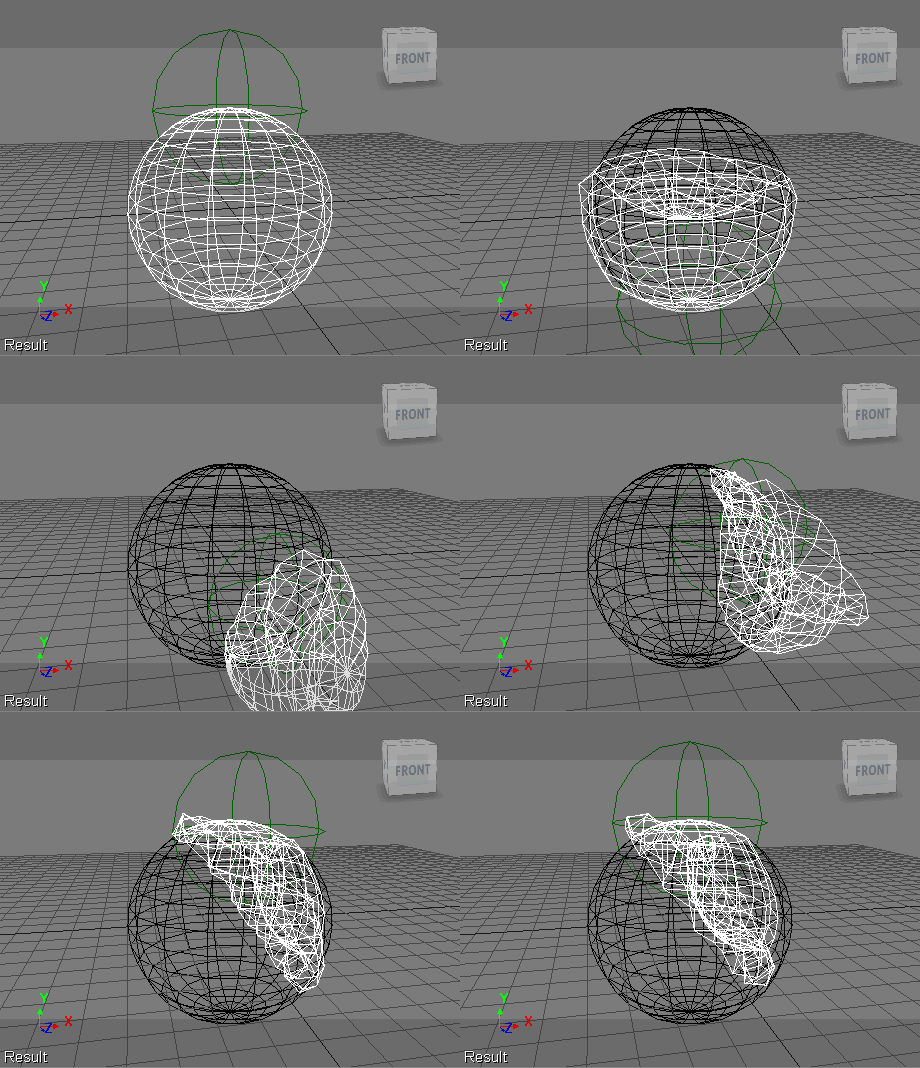
Make your own ICE topo operator to animate the disconnect of components
by Gray


Nodes/attributes: Apply Disconnect Component, IsElement

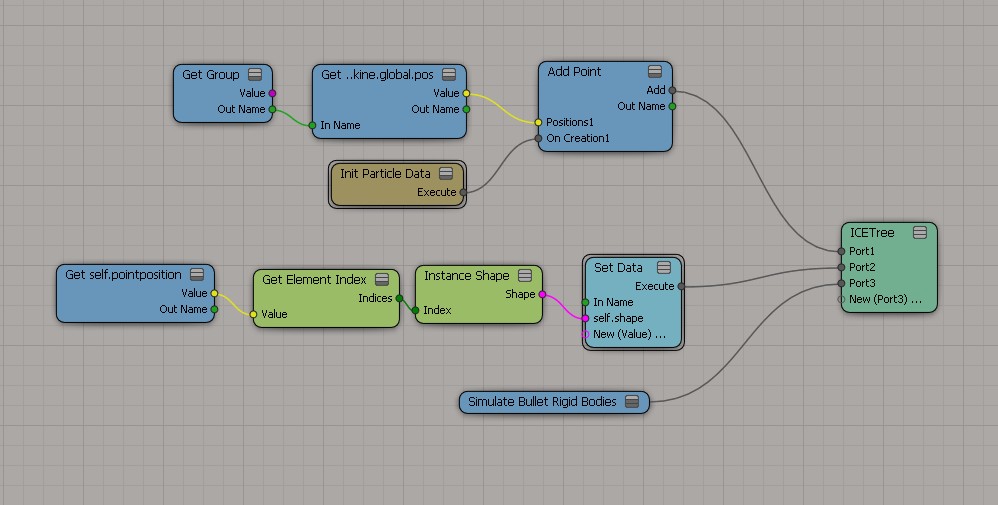
Using Bullet to lay out objects
by Todd Akita on AREA Japan


Nodes/attributes: Add Point, Init Particle Data, Get Element Index, Instance Shape, Simulate Bullet Rigid Bodies

The odd case of Maya Help opening in Chrome instead of the default browser


The other day, I noticed that the Maya Help was using Chrome instead of my default browser (currently IE). I didn’t see anything in the docs about specifying a specific browser, so I figured it must be something about my system.

So, like I often do, I fired up Process Monitor to see if I could figure out why. And it was pretty simple.

I found that

HKEY_CURRENT_USER\Software\Classes\.htm

was set to

ChromeHTML

even though my default browser was IE.

So I changed it back to htmlfile, and voila, Maya 2012 opened the online help in IE again. There are other, similar keys, but I didn’t touch them:

HKEY_CURRENT_USER\Software\Classes\.html
HKEY_CURRENT_USER\Software\Classes\.shtml
HKEY_CURRENT_USER\Software\Classes\.xht
HKEY_CURRENT_USER\Software\Classes\.xhtml
HKEY_CLASSES_ROOT\.html

Here’s a video walk through that shows how Process Monitor can be used to diagnose and troubleshoot this kind of problem.
http://vimeo.com/31272761

Friday Flashback #41


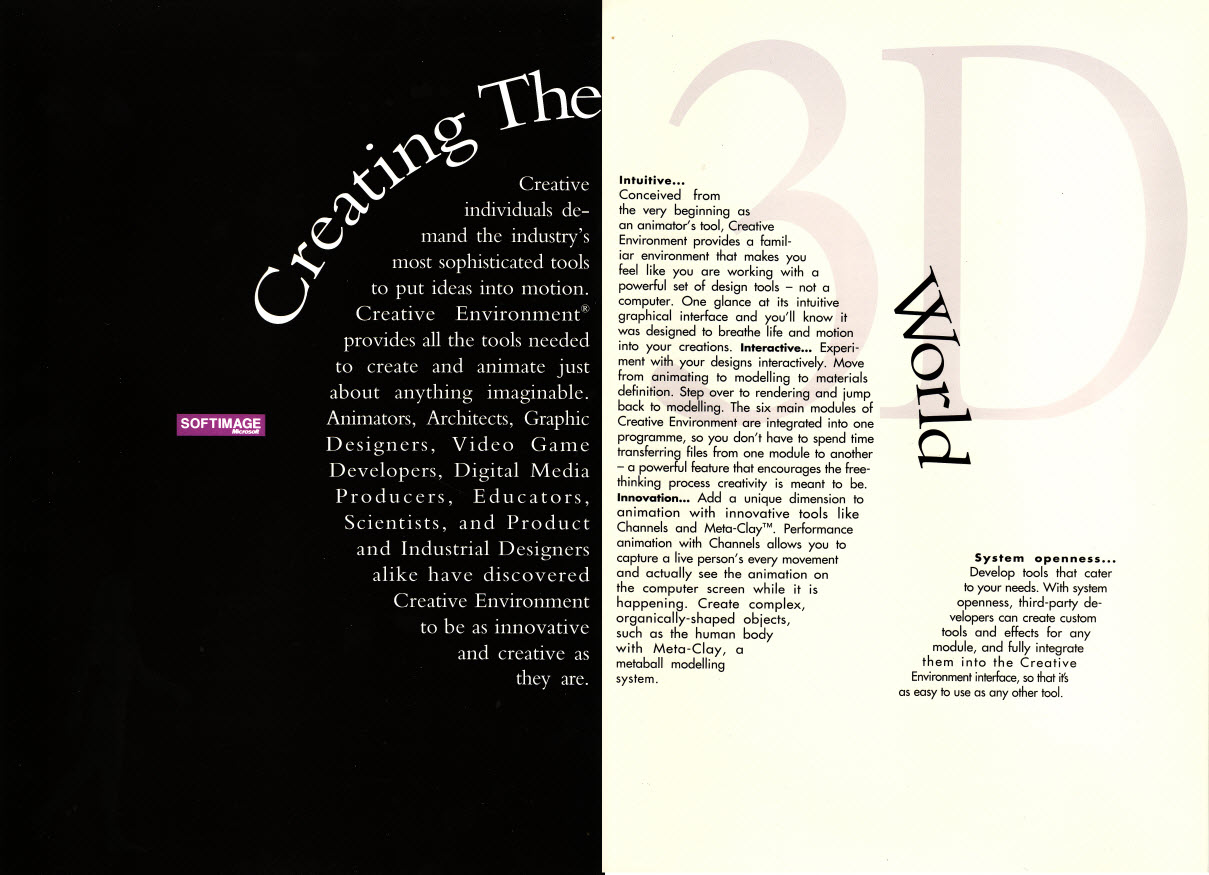
Back in 1994, the Softimage|3D product was known as “Creative Environment”.
Here’s something from a Creative Environment marketing brochure that was based on the phrase “Creating the 3D World”. Note the big Softimage/little Microsoft logo.

Click the image to get a more legible version…

Using animated nulls with Syflex Mimic Null


In the Mimicking the Constraining Object Using Nulls section of the docs, it says that you can

…use a null’s size, shape, and location (animated or not) to determine the area of the cloth’s or curve’s vertices that are constrained. All the vertices that are within the null object’s space are used for mimicking the constraining object, which can be deforming. You could then animate the location or size of the null to create different constraint effects.

That sounds easy enough, but the other day a customer reported that he couldn’t get this to work. It seemed that Syflex Mimic Null was using only the vertices within the null at the start of the simulation.

He sent along a nice test scene for us to work with, so we were able to get him an answer pretty quickly: you need to go into the Syflex Mimic Null compound and select the Reset checkbox on the syflexIMimic node.

Do that, and you’ll get this kind of effect, where as the null position and scaling change, different vertices are constrained to the object being mimicked.